You upload your best headshot, paste a script, press Generate. A minute later the photo talks. The lips keep time, and the head tilts at the right moments.
Then you watch it again. Every vowel stretches into a wide, frozen grin, because the photo you picked was the one where you were grinning.
Making a talking avatar from a photo takes one picture, one audio track and a few dollars. Most of the quality is decided before you press anything: by the photo, the audio and one expression setting.
And one line in Hedra's policy decides whose face you can upload at all. We'll get to it.
Written from Hedra's and HeyGen's docs, pricing and policy pages, checked 31 October 2026. We didn't run a generation test in either tool; the cost arithmetic is ours.
What you'll end up with, and what a 30-second take costs
A video of the person in your photo speaking your audio, with matching lip movement, blinks and some head motion. Both tools here take a still image plus an audio file or a typed script. Both bill by the length of video they generate.
Here's what a 30-second clip costs at each tool's published rate:
| Route | Published rate | One 30-second take |
|---|---|---|
| HeyGen Avatar IV, photo look | 16 credits a minute | 8 credits, about $0.39 on Creator |
| HeyGen Avatar IV + Custom Expressive Motion | 16 + 40 credits a minute | 28 credits, about $1.35 |
| Hedra Character-3 via API, 720p | 5¢ a second | $1.50 |
| Hedra Character-3 via API, 1080p | 6.25¢ a second | about $1.88 |
| Hedra Studio plans | Credits per second not published | Can't be worked out from the pricing page |
The HeyGen figures assume the Creator plan at $29 a month for 600 credits, so a credit is worth just under 5 cents. That plan covers about 37 minutes of plain Avatar IV photo video a month. Turn on the motion add-on and it drops to under 11.
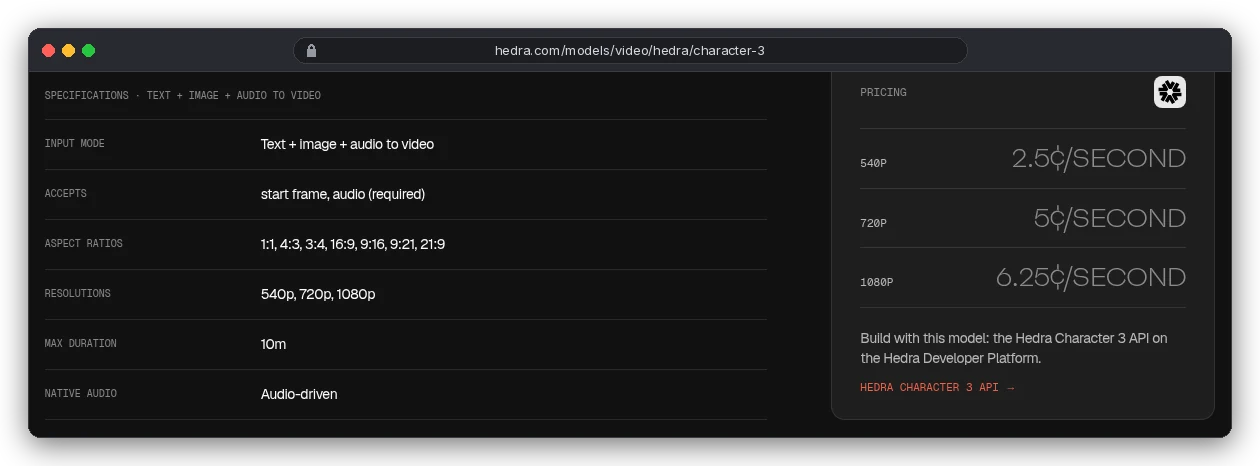
So why would anyone pay Hedra's higher per-second rate? Because there's no subscription. Under about 7.7 minutes of 1080p a month, the API costs less than HeyGen's $29 plan.
Price isn't the first decision, though. The photo is.
What you need before you start
- One photo of a face you're allowed to animate (more on that below).
- One audio file, or a script and a voice. HeyGen caps scripts at 5,000 characters and audio at 10 minutes. Hedra's API takes audio from half a second up to 600 seconds.
- An account. HeyGen's free plan lets you try Avatar IV on a photo, but only 10 seconds per video and 30 seconds a month.
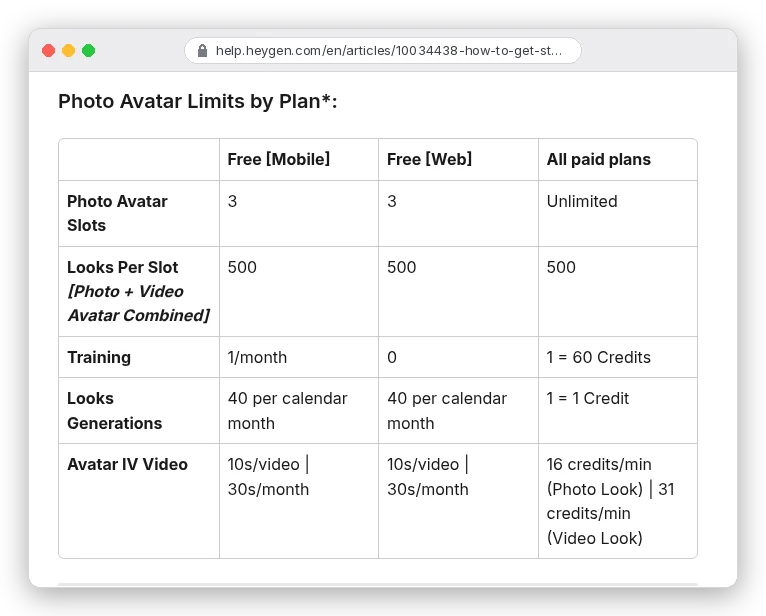
Thirty free seconds is three short tests. That's enough to judge a photo, and nowhere near enough to finish a video, so plan your tests before you spend them.
Step 1: Pick a photo that leaves the face room to move
The model animates what it sees. Whatever expression is frozen in the photo becomes the face it starts from on every word.
That's why a subtle smile beats a big one. HeyGen's first fix for a too-wide mouth: "Use a photo with a subtle smile, not a wide 'cheese' smile." Hedra asks for "a neutral or slightly expressive face".
Same advice, two vendors. Give the model a resting face, not a finished one.
The rest of the checklist comes straight from the two vendors' docs:
- Front-facing, or close to it. HeyGen's developer docs say to avoid "sunglasses, hats covering the forehead, or extreme angles".
- Mouth and lips clearly visible. A hand, a mic or a scarf near the chin gets in the way.
- A big face. HeyGen rejects photos where the "Face is too small" or the "Face is blocked", and lists "Image is blurry or too dark" as another reason.
- Close-up or half-body framing, with no large accessories covering the face.
- Even light. Harsh shadows on half the face give the model less to read.
Two file details catch people out. HeyGen's API takes JPG or PNG under 2K resolution, so a 4,000-pixel phone photo needs resizing first. Hedra's API caps the start frame at 10.4 MB.
Crop for where the video will end up, too. HeyGen's API defaults to an "auto" aspect ratio that matches the source image. Feed it a square headshot and you get a square video.
Two people in the photo? Hedra lets you mark which face speaks with a point on the image. Cropping to one face is simpler.
Step 2: Treat the audio as the performance
This is the step most guides rush. The audio isn't a soundtrack laid over the video. It drives the face.
Hedra says it plainly: the model "uses audio as the core driver for facial animation, your audio quality heavily dictates the output".
HeyGen's FAQ ranks what its newest engine, Avatar V, listens to: audio first, then the expression in the photo, then your prompt. Avatar IV, the default for photos, follows prompts more closely. HeyGen's advice for both is short: "Avoid flat or monotone speech."
You have three ways to get the audio:
- Record it yourself. A quiet room matters more than an expensive mic, because Hedra asks for "zero background noise or heavy reverb". Our guide to recording and generating voiceovers covers the setup.
- Generate it from a script with a text-to-speech voice, inside HeyGen or from a voice tool like ElevenLabs. Read the take back before you use it; a wrong stress on one word shows on the lips too.
- Use a clone of your own voice, so the face and the voice both belong to you. Read how to clone your voice safely first; it covers the consent rules for voices.
Speak a little more expressively than feels natural. HeyGen's FAQ warns that if the audio "lacks emotion, or energy, the resulting avatar may appear more static."
Step 3: Generate a 10-second test before the full take
Every re-render costs credits. In HeyGen, changing a scene "requires the scene to be re-rendered, which consumes credits." So test the photo and the voice on one short line before you commit a three-minute script.
Both tools bill by length, which keeps tests cheap. Hedra only charges for the seconds generated; its pricing FAQ gives the example of a 10-second Character-3 video costing 10 seconds, "not a full minute". At the 720p API rate that test costs 50 cents.
In HeyGen, the fastest route is the Photo to Video tool: upload the photo, write a script or upload audio, pick a voice, generate. For an avatar you'll reuse, go to the Avatars tab, choose New Avatar, then Upload Photo, and wait for the look to be validated.
One trap from HeyGen's FAQ: if the finished video doesn't speak, you probably uploaded the photo as an asset, not as a photo avatar.
Watch the test at full size, twice. Look at the mouth on long vowels, the first and last second, and anything near the edges of the face, like glasses, earrings or hair.
Step 4: Set how much the face moves
Expression is the setting that separates a natural clip from an uncanny one, and both tools give you a handle on it.
In HeyGen
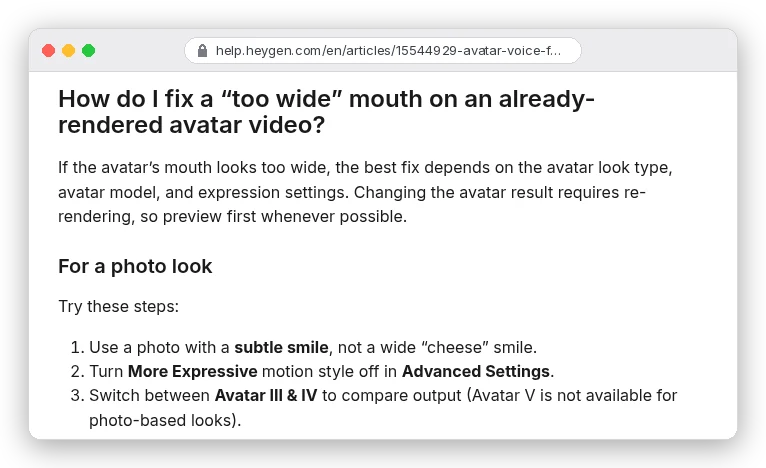
Photo avatars run on Avatar IV by default. HeyGen's API exposes an expressiveness setting of low, medium or high, and the default is low. In the Studio, Advanced Settings has a "More Expressive" motion style, and HeyGen's fix for a too-wide mouth is to turn it off.
For gestures, there's a Custom Motion prompt ("nodding gently" is HeyGen's own example). It works on photo looks, and HeyGen suggests something like "talks excitedly" when a photo avatar feels stiff.
It isn't free, though. Custom Expressive Motion costs 40 credits a minute on top of Avatar IV's 16, so a 30-second clip goes from 8 credits to 28. Same length, 3.5 times the price.
Render it plain first. Add motion only to the scenes that look stiff.
In Hedra
Character-3 takes a text prompt with every job; the API won't run without one. Use it to describe the delivery. Hedra's own example is "speaking in a calm, steady voice".
Hedra also warns about "overly dramatic or unnatural hand gestures" and says to use the prompt "to explicitly restrain their movement". A line like "minimal hand movement, steady head" is that kind of instruction.
One caveat: HeyGen's docs disagree with each other here. Its FAQ says Avatar V "is not available for photo-based looks". Its Single Scene guide says photo avatars in Presenter Mode run on Avatar V.
If you see an Avatar V option on a photo, check the credit cost HeyGen shows before you generate. HeyGen says that number is always the one it charges.
Whose face can you animate?
Here's the line we promised. Hedra's Acceptable Use Policy bars any input or output with "personal information related to any individual other than yourself, including (without limitation) any photos".
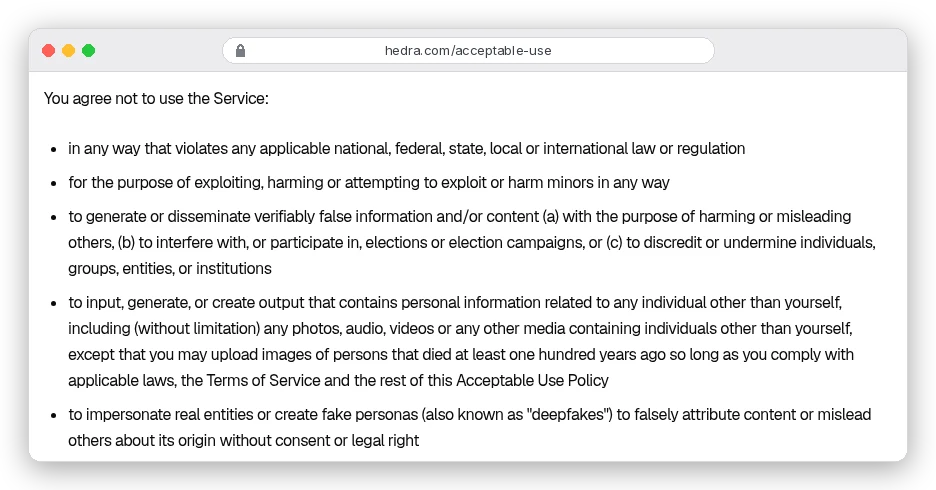
Read literally, that rules out a colleague's headshot even if they say yes. The only exception it names is people who died at least 100 years ago. So on Hedra, the faces you can use are your own, illustrated or AI-generated characters that aren't real people, and historical figures.
HeyGen draws the line differently. Its moderation policy allows other people's likenesses with consent, and bans avatars that "Represent real individuals, including celebrities or public figures, without their explicit consent". Anyone who appears to be under 18 is off limits.
There's a catch for later, too. The person in the photo can ask for their likeness to be removed at any time. You're responsible for taking it down wherever you published.
That's the real reason the cost table above isn't the whole answer. If the face is yours, both tools are open to you. If it's a client's, a colleague's or a presenter you hired, HeyGen with written consent is the route, and Hedra isn't.
The law around a borrowed face
Platform policy is the floor. The law adds to it, and it differs by country. A few rules that apply to talking avatars:
- California: Civil Code 3344 makes anyone who knowingly uses another person's "name, voice, signature, photograph, or likeness" to advertise or sell, without prior consent, liable for at least $750 or the actual damages, whichever is greater. Other US states have their own right-of-publicity rules.
- European Union: from 2 August 2026, Article 50(4) of the AI Act requires whoever publishes a deepfake to disclose that it's AI-generated. The Commission's guidance says the label must be visible or audible "upon first exposure at the latest", and a hidden watermark isn't enough.
- India: since 20 February 2026, amended IT Rules require large social platforms to ask users, before upload, whether content is synthetically generated. They also bar synthetic content that falsely depicts a real person's identity, voice or statements in a way likely to deceive.
A realistic avatar of a real person, speaking words they never said on camera, is what these rules describe. Your own face can count too, because viewers can't tell you didn't film it.
This isn't legal advice. If you're animating someone else's likeness for a commercial project, get written consent and ask a lawyer who knows your market.
Label it where you post
YouTube requires creators to disclose realistic AI content that "Makes a real person appear to say or do something they didn't do". In YouTube Studio that's the "AI use" setting under Attributes, chosen during upload. YouTube says the label alone won't limit reach or monetisation, but creators who keep skipping it risk removal or suspension from the Partner Program.
If the avatar is going into an ad, the rules get stricter: a talking avatar that sounds like a happy customer is a fake testimonial. Our guide to AI UGC ads covers the FTC rules and the TikTok and Meta labels.
Mistakes that make a photo avatar look fake
- A big-grin photo. The grin becomes the resting face and every vowel stretches it.
- Flat audio, then a prompt asking for energy. The audio wins.
- Paying for motion on every scene. On HeyGen it's 3.5 times the credits for a 30-second clip; add it only where the plain render looks stiff.
- A tiny face in a wide shot. Crop in until the face fills a good part of the frame.
- Rendering the whole script first. One 10-second test catches a bad photo for well under a dollar.
- Someone else's face on Hedra. Its policy bars it, permission or not.
- No label. On YouTube, and for viewers in the EU, a realistic avatar of a real person needs one.
Which route should you take?
If the face is yours and the audio is the point (a podcast clip, a song, a long explainer), start with Hedra. Character-3 is built around audio-driven animation, takes up to 10 minutes in one generation, and its pay-as-you-go API needs no subscription. For pay-per-second rates and how its Studio plans compare, see our Hedra pricing breakdown.
If you'll make a lot of short clips, HeyGen is cheaper per minute: $29 a month covers about 37 minutes of Avatar IV photo video. That subscription only beats Hedra's API once you'd use more than about 7.7 minutes of 1080p a month.
HeyGen is also the only one of the two you can use with another person's face, and only with their explicit consent.
Neither fits? Our comparison of AI avatar generators by real cost covers Synthesia, D-ID and others, and our roundup of HeyGen alternatives covers Colossyan, Creatify and more.