You upload a photo you love, type "make it move", and wait. What comes back starts on your photo. Then the face softens, the mug grows a second handle and the camera wanders off somewhere you never asked it to go.
Image-to-video AI fails that way for a predictable reason. Your prompt described the picture, so the model spent its effort repainting it. The fix is to describe only what moves.
There's also a default setting on Kling that can quietly cut your single photo into several shots. We'll get to it in step 5.
Written from Kling, ImagineArt and Google's own docs and pricing pages, checked on 23 October 2026. We didn't generate clips for this guide; the arithmetic is ours.
What you'll have at the end
A 3 to 15 second clip that opens on your exact photo and moves the way you planned. Steam rising, a slow push in, hair lifting in the wind. On Kling 3.0 a five-second version costs 30 to 60 credits, depending on resolution and sound.
That's one shot, not a finished video. If you need the whole workflow, from shot list to edit, start with our guide on how to make AI videos. This one goes deep on a single job: turning a still into a clip you'd actually use.
Step 1: Prepare the photo before you upload it
The model treats your image as the first frame of the video. Every flaw in it gets animated, and every crop decision becomes permanent.
So fix three things first:
- Crop to the final aspect ratio. In Kling 4.0's Keyframes mode the video's aspect ratio "follows the first keyframe", so a 4:5 phone photo sets the shape of the clip. Crop to 16:9 or 9:16 before uploading, not after.
- Use the biggest file you have. Kling's API and ImagineArt both set a 300 px minimum. That's a floor, not a target, and Google asks for "high-resolution images".
- Keep one clear subject. ImagineArt's own advice is "images with clear subjects and unambiguous composition". A crowded frame gives the model ten things to move and no idea which one you meant.
File limits differ more than you'd expect. ImagineArt takes JPG, PNG or WEBP under 10 MB. Kling's 3.0 API takes JPG or PNG up to 50 MB, between 1:2.5 and 2.5:1.
So a WEBP saved from a website works on one and not the other. Export a JPG and stop thinking about it.
If the still is AI-generated, fix it while it's still an image. Extra fingers or warped lettering in the photo won't heal in motion. Our guide to writing AI image prompts covers getting a clean first frame.
Step 2: Write a prompt that only describes motion
This is the whole trick. The model can already see the photo, so don't describe it again. Describe what moves, how the camera moves, and what the air, water or light is doing.
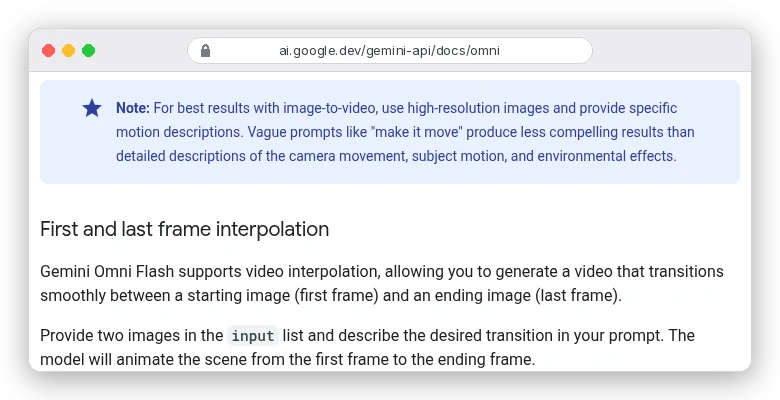
Google says this plainly in its Omni Flash docs. Vague prompts like "make it move" produce weaker results than describing "the camera movement, subject motion, and environmental effects".
A motion prompt has three short parts: subject motion, camera move, environment. Here's what that looks like for common photos:
| Your photo | Motion-only prompt |
|---|---|
| Coffee cup on a table | Steam rises from the cup and drifts left. Slow push in. Light stays constant. |
| Portrait by a window | She blinks once and turns her head slightly toward the window. Hair lifts in a light breeze. Static camera. |
| Product on a plinth | Slow orbit right around the bottle. The label stays sharp and readable. Soft reflections slide across the glass. |
| Lake landscape | Ripples move across the water, clouds drift right, a sailboat glides slowly left. Slow pan right. |
| Old family photo | The couple smile and lean slightly together. Subtle film grain. Static camera, single continuous shot. |
Notice what's missing: no "beautiful", no "cinematic", no list of objects in the frame. Kling's 4.0 guide says abstract terms like "premium look" or "cinematic feel" are among the first things to replace with concrete light, materials and composition.
Isn't a longer prompt safer? Kling's answer is no. Start with one sentence covering the element, scene, action and emotion, then add only details that change the result, "such as camera work, timing, audio".
Step 3: Choose one camera move, and only one
Leave the camera out of the prompt and the model picks a move for you. Put three moves into five seconds and you've asked for all of them at once. One move per clip is the rule that saves the most retries.
Kling's 4.0 guide names the moves it handles: "push-ins, pull-outs, pans, tracking shots, and orbit shots". In plain terms:
- Push in: the camera moves toward the subject. Good for product reveals and portraits.
- Pull out: the camera moves away. Good for revealing a landscape around a detail.
- Pan: the camera turns left or right from one spot. Good for wide scenes.
- Orbit: the camera circles the subject. Good for products, risky for faces.
- Static: no camera move at all. The safest choice when the subject itself moves.
Orbits are the risky one with a single photo. The model has to invent the side of the object it can't see, and that invented side is where a bottle's label turns to soup.
Orbit a product only if you can supply an end frame of the other side. That's what step 4 is for.
Step 4: Pin the ending with a first and last frame
A single image tells the model where to start. A second image tells it where to finish, and the model fills in the motion between them. Google calls this interpolation; ImagineArt calls the slots Start Frame and Last Frame.
Use it whenever the ending matters. ImagineArt's own example pairs a daytime landscape with a night version of the same scene, for a time-lapse-style transition.
Kling's 4.0 guide suggests the same mode for "transformation processes, craftsmanship, and before-and-after comparisons".
Three details from the docs that most guides skip:
- Make the two frames related. ImagineArt recommends similar subjects, environments or colour palettes; two unrelated photos give the model nothing to interpolate.
- Use the same image twice for a loop. Google's Omni Flash docs say putting one image in both the first and last slot creates "a video that loops", useful for a cinemagraph-style background.
- Not every model has a last-frame slot. ImagineArt marks the ones that do as Start/End, and Kling 4.0 Flash doesn't currently support start-and-last frames at all.
Kling 4.0 goes further with Keyframes: up to 10 images placed along a 3 to 30 second timeline, including middle frames. You write the prompt in time slots: "0–3 sec | Keyframe 1: she looks up", then "3–6 sec | Keyframe 2: she turns to the window".
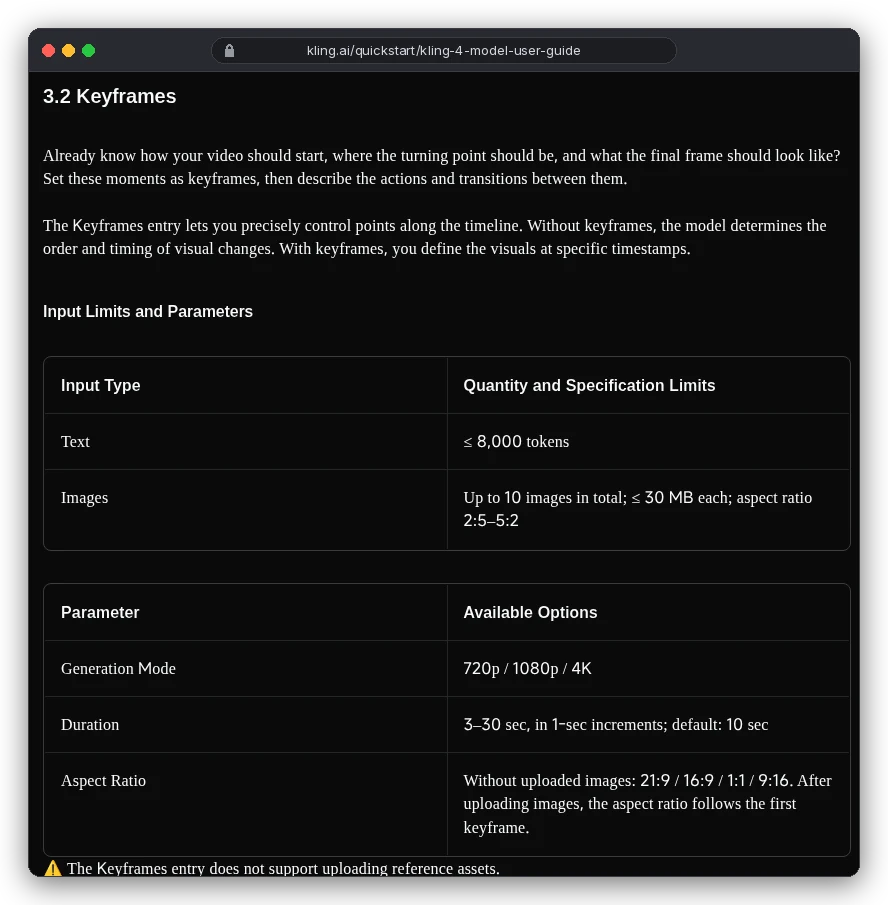
One gap worth knowing. Kling's 3.0 API says "last-frame-only video generation is not supported". Kling 4.0's Keyframes mode in the app does list last frames, so for a clip that ends on your photo, use 4.0.
Step 5: Set duration, resolution and the multi-shot switch
Here's the setting from the intro. Kling 3.0 can split one generation into several shots, and in its API the multi_shot setting defaults to true. Leave it on and your one photo can come back as a little edited sequence, with cuts, when you wanted a single moving picture.
Google's Omni Flash does the same. Its docs say: "By default Omni Flash will try to create a video with a few different shots." The fix there is in the prompt, with phrases like "in a single continuous shot" or "no scene cuts".
In Kling's app, switch Multi-Shot off; with it off, Kling's guide says, the model defaults to a single shot.
Duration next. Shorter is usually the safer choice for a still, because fewer seconds means less motion for the model to invent. Kling's own credit guide puts it this way: "A focused 6-second shot may be more efficient than a loose 15-second scene."
You may be looking for a motion-strength slider, since older tools had one. Kling's 3.0 image-to-video API has no such field: you send the prompt, the frames, and settings for duration, resolution, audio and multi-shot. How much things move comes from your words ("slightly", "slowly", "once"), so write the amount of motion into the prompt.
Which image-to-video AI model fits which shot?
Most tools now let you pick from dozens of models, and the picker is where credits disappear. ImagineArt lists 37 in its Create Video picker. Its own model guide narrows them by job, and we've added the base cost from its credit table:
| The shot | Start with | Base credits (min. length) | Why |
|---|---|---|---|
| Animate a photo faithfully | MiniMax Hailuo H3 Max | 150 (5 s, up to 768p) | ImagineArt's pick: "Stays faithful to the source image" |
| Quick single-image test | Google Omni Flash | 235 (3 s, 720p) | Start frame only, 3 to 10 seconds |
| Fast action, dance, sport | Kling 3.0 Pro | 300 (3 s, 1080p) | "Handles fast, intricate motion", start and end frames |
| Before-and-after transition | Flux 3 | 510 (5 s) | Start and end frames "with close prompt following" |
| Cheap motion drafts | Seedance 1.5 Pro | 72 (4 s, up to 720p) | Start/End frames at a fraction of the cost |
One trap in ImagineArt's docs. Its model guide calls Seedance 2.0 Mini "the lowest-cost model in the picker". Its own credit table lists Mini at 105 credits, Seedance 1.5 Pro at 72 and Wan 2.2 at 30.
Trust the table, then hover the Create button, which ImagineArt says shows the exact total for your settings.
Working directly in Kling instead? The choice is simpler. Use 3.0 for start and end frames up to 15 seconds, and 4.0 Keyframes for middle frames or clips up to 30 seconds. Our ImagineArt review covers where its credit estimates run short, which matters once you start comparing.
What does one clip actually cost?
Kling publishes the cleanest numbers, so start there. Kling 3.0 charges per second: 6 credits at 720p without sound, 8 at 1080p, and 12 at 1080p with native audio.
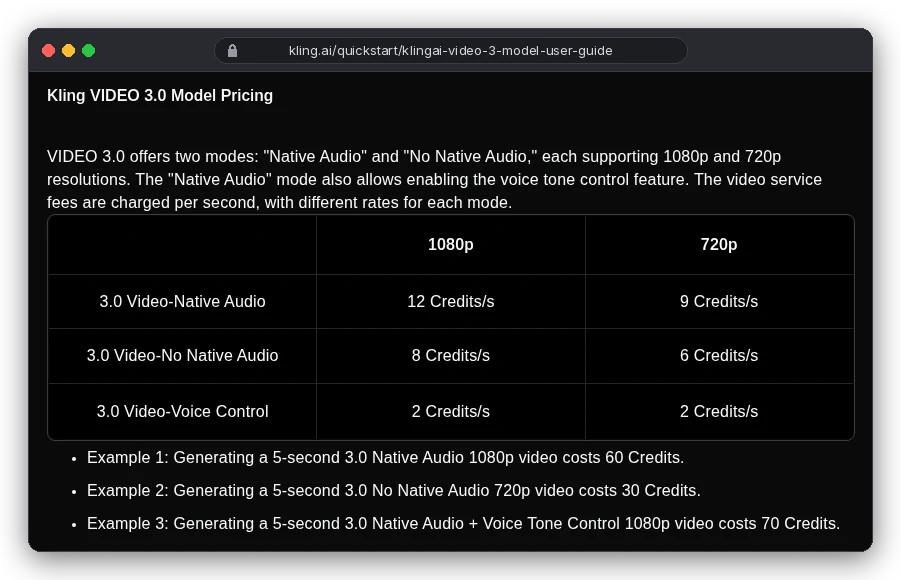
So a five-second clip costs 30, 40 or 60 credits. Kling's Standard plan gives 660 credits a month at "as low as $1.33 per 100 credits", which makes those clips about $0.40, $0.53 and $0.80.
Kling's plan card says Standard covers "33 720p videos". On 3.0, 660 credits buys 22 five-second 720p clips without sound, or 11 at 1080p with sound. Kling doesn't say which model the 33 assumes, so plan on the lower number.
Here's the same five-second clip across the routes we checked:
| Route | One clip | How we got it |
|---|---|---|
| Kling app, 3.0, 720p, no audio | About $0.40 | 30 credits at $1.33 per 100 |
| Kling API, 3.0, 720p, no audio | $0.42 | $0.084 a second |
| Gemini API, Omni Flash, 720p | About $0.50 | About $0.10 a second |
| Kling API, 3.0, 1080p, with audio | $0.84 | $0.168 a second |
| ImagineArt Ultimate, Kling 3.0 Pro | About $0.64 (3 s) | 300 credits; $34 a month yearly buys 16,000 |
But you won't keep every clip. Say a shot takes three attempts before one is right, a hypothetical but not a pessimistic one. Kling's credit guide itself says to "treat reference setup, retries, and review cycles as part of the production process."
Run all three attempts at 1080p with audio and the shot costs 180 credits, about $2.39. Run two silent drafts at 720p and only the final at 1080p with audio, and it's 120 credits, about $1.60. That's a third less for the same keeper.
The draft tests your prompt, not the final clip; re-rendering gives you a new generation, not a sharper copy. Still, it's the cheapest way to find out whether "slow orbit right" does what you hoped. And if a generation fails outright, Kling's credit policy says the credits are refunded.
Why faces melt, hands sprout fingers and logos warp
These are the three failures you'll see most, and the vendors know it. Kling's own sample prompts carry lines like "add extra fingers" and "Avoid duplicate limbs, flickering geometry" as things not to do.
When a face drifts into someone else, look at how much you asked it to move. The less a face has to move, and the shorter the clip, the less there is to redraw. Ask for small motions ("blinks once", "turns her head slightly"), keep it to five seconds, and use a static camera.
Hands are worse when they move across the body or hold something. If the hands don't need to move, say so: "hands stay still on the table". If they must, give a last frame that shows where they end up.
Text and logos are the third weak spot, and Kling names the problem itself. It says 3.0 keeps text from the source image and avoids "text displacement or blurring". That makes it a good first try for product shots.
Google's advice for Omni Flash is to state what the text says. Either way, "the label stays sharp and readable" belongs in the prompt.
Negative prompts work differently by tool. Omni Flash has no negative-prompt field, so exclusions go into the main prompt ("Do not do X"). Kling's examples simply write the "do not" lines into the prompt too.
Can you animate a photo of a real person?
Technically, often yes. Being allowed to is a separate question, and the tools push it back onto you.
Kling's terms make you warrant that you own what you upload or have permission to use it. You also promise it doesn't infringe anyone's "personality rights" or personal data rights.
ImagineArt's FAQ tells paid users to follow local laws on "advertising, privacy, and content usage". Google's Omni Flash simply doesn't support uploading images of "certain recognizable people", or images of minors in the EEA, Switzerland and the UK.
So for a client, a friend or a family photo, get the person's consent first, in writing if it's going in an ad. A stock or press photo also needs a licence that covers it. Every Omni Flash video carries SynthID, an invisible watermark software can detect.
This is general information from the vendors' own documents, not legal advice.
If what you actually want is a photo that talks, that's lip-sync, a different tool category. Our roundup of AI avatar generators compares those by cost per finished minute.
Where should you start?
One photo that should move without changing? Start on Hailuo H3 Max or Omni Flash in ImagineArt. Use a static camera and a five-second, motion-only prompt.
If the ending matters, like a product turning or day becoming night, use a model with a last-frame slot. Kling 3.0 covers clips up to 15 seconds; Kling 4.0 Keyframes adds middle frames.
And if you're making stock-style B-roll from scratch rather than animating your own photo, skip the photo step entirely. Our Kling prompts for B-roll are written for that.