You type one sentence, wait a couple of minutes, and get eight seconds of something beautiful. It just isn't what you asked for. The camera drifts, the mug changes colour, and a chunk of your credits is gone.
Most first AI videos go like that, and a better prompt rarely fixes it. AI video tools make clips, not videos. People who get usable results plan each clip like a film shot. They fix the look while it's still a picture, and only then ask the model to move it.
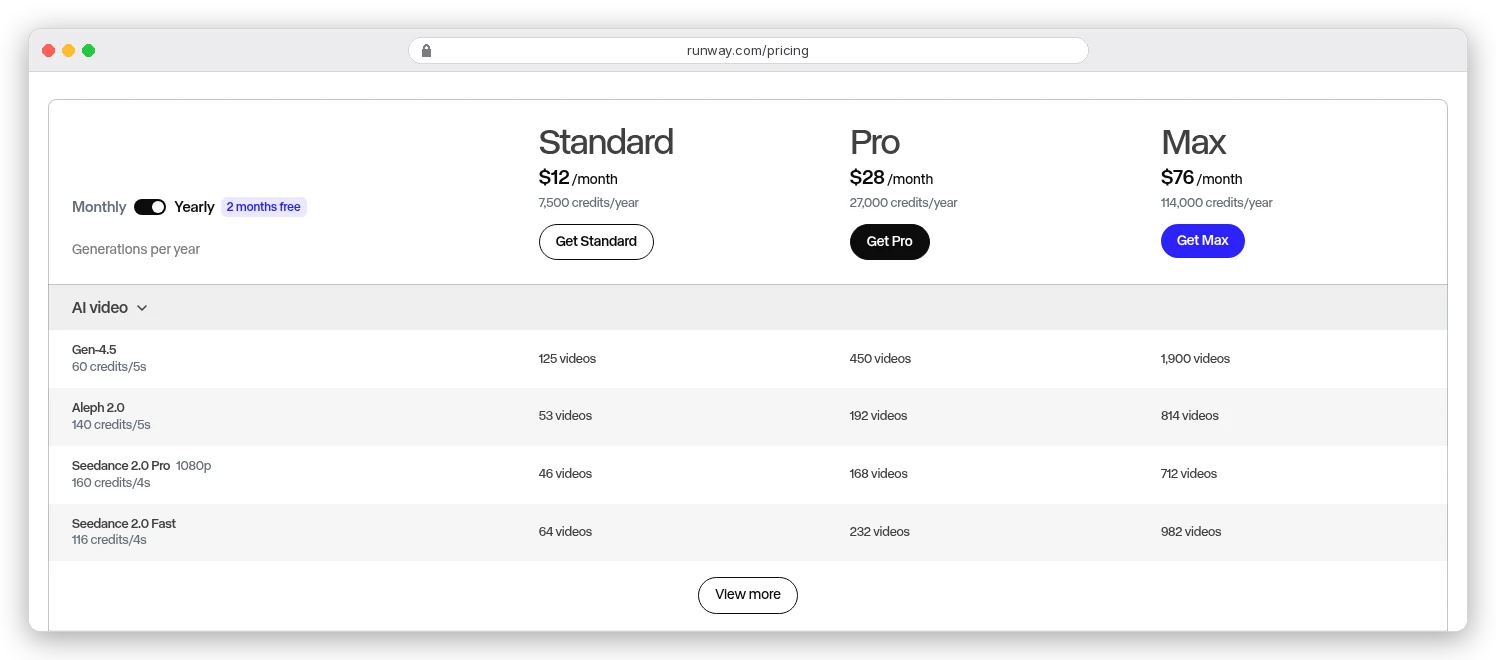
That middle step is the one beginners skip. It's also the cheapest place to make a mistake: on Runway, a still image costs 8 credits and a five-second clip costs 60.
Prices and credit costs were read from Runway, Kling, Google and ImagineArt's own pricing pages and docs on 20 October 2026. We didn't generate test videos for this guide: the workflow comes from vendor documentation, and the arithmetic is ours.
What you'll have at the end
A finished AI video is usually 20 to 40 seconds of four to eight separate clips. You cut them together in an ordinary editor and add sound, or let the model add it.
That's because each generation is short. Veo 3.1 makes 4 to 8 seconds, Kling 3.0 makes 3 to 15, and Runway 4.5 makes 5 to 10, per the model table in ImagineArt's video credits docs. Kling 4.0, released on 15 October 2026, stretches a single generation to 30 seconds.
So even a one-minute video means eight to fifteen generations you keep, plus the ones you throw away. Plan for the throwaways now and nothing later in this guide will surprise you.
Text-to-video or image-to-video: which should you start with?
There are two ways in. With text-to-video, you describe the scene in words and the model invents everything: the setting, the subject, the light, the motion. With image-to-video, you hand it a picture as the first frame and describe only what should move.
Most tools go one step further. Give a first and a last frame, and the model fills in the motion between them; Google calls this interpolation in its Gemini Omni Flash docs. Kling 4.0's Keyframes mode accepts up to 10 frames along the timeline, so you can pin the start, the turning point and the ending.
Text-to-video is fine when the exact look doesn't matter: rain on a window, a city at dusk, steam off a coffee. That's B-roll, and our 41 Kling prompts for B-roll are written for exactly that.
Anything that has to look a specific way should start from an image. A product, a character who appears in three shots, a brand colour, a room that must stay the same room. Text-to-video will reinvent all of those on every attempt.
Isn't that just an extra step? Yes, one. But it moves your mistakes from the expensive part of the process to the cheap part, which is the whole point of step 2 below.
What you need before you start
Four things, and only the first one costs money:
- An account on one video tool. Pick one and learn it; switching tools mid-project means relearning how each model reads prompts.
- An image generator for first frames. Usually the same tool, since Runway, Kling and ImagineArt all make images too.
- A video editor to cut the clips together. CapCut is free and enough for a first video; Premiere or DaVinci Resolve work just as well.
- A voice, if the video talks. More on that in step 5.
For the video tool itself, these are the four routes most beginners end up choosing between. They differ less in quality than in how they bill you:
| Tool | How you pay | Entry point | Good first pick if… |
|---|---|---|---|
| Kling | Monthly credits | Standard: 660 credits a month, which Kling says covers about 33 videos at 720p | You want Kling's newest features first, like 30-second takes |
| Runway | Monthly credits | Standard: $12 a month billed yearly for 625 credits, or 52 seconds of Gen-4.5 | You want credits that map cleanly to seconds |
| ImagineArt | Monthly credits across 37 video models | Ultimate: $50 a month, or $34 billed yearly, for 16,000 credits | You want to try several models without several subscriptions |
| Google Gemini API | Per second, pay as you go | Veo 3.1 Lite from $0.05 a second at 720p | You're a developer and want to script it |
One warning on the last row. Google's pricing page says the Veo 3.1 preview models on the Gemini API shut down on 22 October 2026. The replacement is Gemini Omni Flash, at about $0.10 a second for 720p. If you're building on the API, start on Omni Flash.
What does a second of AI video actually cost?
Credits make this hard to compare, so we turned every option into the same unit: dollars per generated second. Developer APIs publish this directly. For Runway we divided the plan price by its credits.
| Model and setting | Per generated second | Where the number comes from |
|---|---|---|
| Veo 3.1 Lite, 720p, with audio | $0.05 | Gemini API pricing |
| Gemini Omni Flash, 720p | About $0.10 | Gemini API pricing |
| Kling 3.0, 1080p, no audio | $0.112 | Kling API pricing |
| Veo 3.1 Fast, 1080p, with audio | $0.12 | Gemini API pricing |
| Runway Gen-4.5 on Pro, billed yearly | About $0.15 | 12 credits a second; $28 buys 2,250 credits |
| Kling 3.0, 1080p, with audio | $0.168 | Kling API pricing |
| Runway Gen-4.5 on Standard, billed yearly | About $0.23 | 12 credits a second; $12 buys 625 credits |
| Veo 3.1, 1080p, with audio | $0.40 | Gemini API pricing |
A generated second isn't a finished second, though. Say you're making a 30-second video from six five-second shots, and each shot takes three attempts before one is right. That's a hypothetical, but a modest one, and it means 90 generated seconds for 30 you keep.
On Veo 3.1 Lite those 90 seconds cost $4.50. On Kling 3.0 at 1080p without audio, about $10. On full Veo 3.1, $36.
Same video, same number of attempts. An eightfold gap from one model dropdown.
On Runway, the same 90 seconds is 1,080 credits. That's almost half of Pro's 2,250 monthly credits, or more than the 625 that Standard includes, for one 30-second video.
You're probably thinking three attempts per shot is pessimistic. Maybe, for B-roll. But Kling's own credit guide tells creators to "treat reference setup, retries, and review cycles as part of the production process."
That's the vendor admitting the first take often isn't the keeper. The steps below are about getting that number down.
Step 1: Write a shot list, not a prompt
Before you open any tool, write down every shot in the order it will appear. One line each: what we see, how long it lasts, what the camera does, and what we hear.
Here's a hypothetical 30-second shot list for a small coffee brand:
- Wide shot of a quiet café at sunrise, camera static, 5 seconds, soft street ambience.
- Close-up of beans pouring into a grinder, slow push in, 5 seconds, the rattle of beans.
- Espresso dripping into a white cup, locked-off macro, 5 seconds, a low hiss.
- A hand sliding the cup across the counter, camera tracks left, 5 seconds.
- Steam curling off the cup by the window, slow dolly in, 5 seconds.
- The cup on the counter beside the bag of beans, static, 5 seconds, room for your logo in the edit.
Notice what each line has in common: one action, one camera move. A clip that tries to do two things usually does neither clearly, and you pay for the attempt either way.
The list also tells you your aspect ratio. Decide now between 16:9 for YouTube and 9:16 for Reels and Shorts, because not every model offers every shape. In ImagineArt's model table, Veo 3.1 only offers 16:9 and 9:16, while Seedance 2.5 adds 1:1, 4:3, 3:4 and 21:9.
Step 2: Lock the look in a still image
This is the step that saves the most money. Generate the first frame of every shot as an image. Then fix everything you can while it's still a picture: the colour of the cup, the hands, the light, the framing.
Images cost a fraction of what clips do. A Gen-4 image on Runway is 8 credits; a five-second Gen-4.5 clip is 60. That's seven stills for the price of one clip.
On ImagineArt the gap is wider. An ImagineArt 2.0 image is 25 credits and a Kling 3.0 Pro clip starts at 300, so twelve stills per clip.
Then animate only the frames you'd be happy to publish as photos. If the cup is the wrong shade in the still, it stays wrong for all five seconds. And you'll have paid 60 credits to find out.
For a character or product that appears in several shots, reuse it as a reference instead of describing it again. Kling 4.0 takes up to 15 reference assets per generation, including up to 10 images. ImagineArt's Reference Image to Video mode on Kling O1 starts at 210 credits; our ImagineArt review covers where its credit estimates run short.
Step 3: Write a motion prompt
When you animate a still, don't describe the picture again. The model can already see it. Describe what moves, how the camera moves, and what we hear.
Google is blunt about this in its Omni Flash docs. Vague prompts like "make it move", it says, give weaker results than describing the camera movement, subject motion and environmental effects.
For text-to-video, Google's video prompt guide breaks a prompt into parts you can work through in order:
| Part | What it answers | Example |
|---|---|---|
| Subject | Who or what | A white ceramic cup of espresso |
| Action | What happens, with an end point | Steam rises and drifts out of frame |
| Scene | Where and when | A wooden counter by a window, early morning |
| Camera | Angle and movement | Close-up, slow dolly in |
| Style and light | The look | Soft golden side light, shallow depth of field |
| Audio | What we hear, in its own sentence | Quiet café murmur and a spoon clinking once |
Put together for shot 5, an image-to-video prompt might read: "Slow dolly in. Steam rises from the cup and drifts left out of frame. The light stays constant. Audio: a quiet café murmur, a spoon clinks once."
Four short sentences, and nothing about the cup itself, because the still already shows it.
Two details trip people up. First, Google recommends putting audio in separate sentences. Second, exclusions work differently by tool.
Google's Veo guide says to name what you don't want ("wall, frame") rather than write "no walls". Omni Flash has no negative-prompt setting at all, so the exclusion goes into the main prompt. Check which way your tool works before relying on either.
Step 4: Pick a model, draft cheaply, render once
Model choice is where credits disappear fastest, because the spread is huge. In ImagineArt's picker, the base cost of one clip ranges from 72 credits for Seedance 1.5 Pro to 900 for Google Veo 3.1.
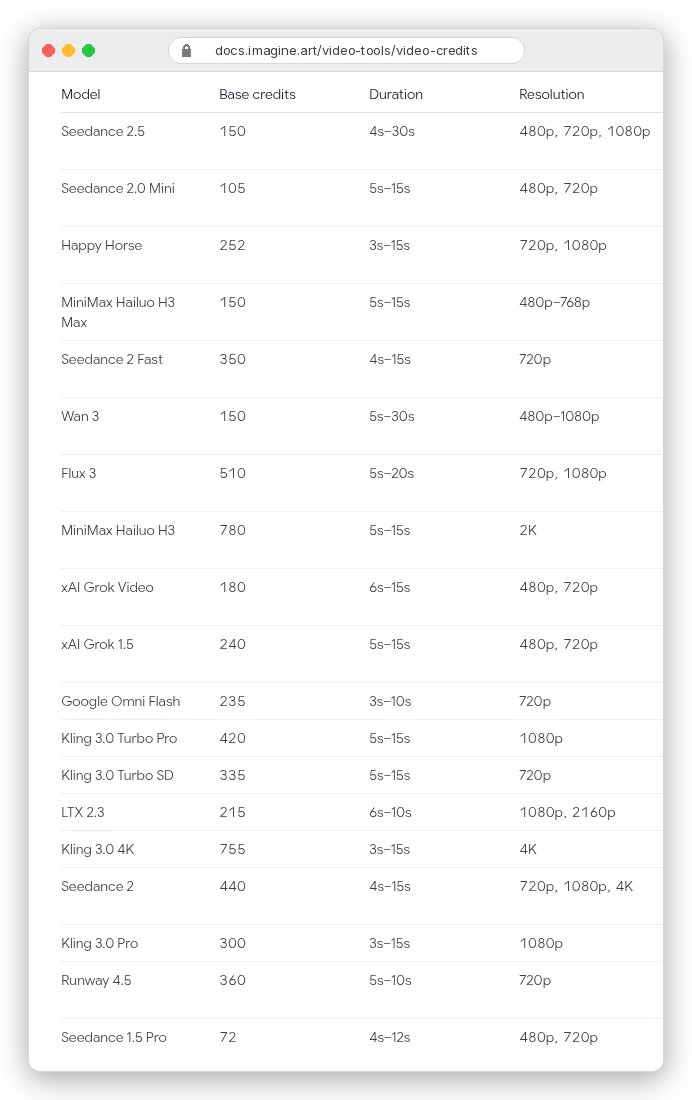
Put in plan terms: ImagineArt's Ultimate plan has 16,000 credits a month. That's about 222 base clips on Seedance 1.5 Pro, 53 on Kling 3.0 Pro, or 17 on Veo 3.1.
Those are minimum-duration figures. Longer clips, higher resolutions, preview frames and the prompt enhancer all add to the total, says ImagineArt. Hover the Create button to see the exact number before you commit.
So draft cheaply. Generate your test attempts at 720p, at the shortest duration, with audio off, and switch to the expensive settings only once the motion is right. On Kling's API, 720p is 25% cheaper than 1080p. Turning native audio on at 1080p raises the price by half, from $0.112 to $0.168 a second.
Kling's own guide agrees: "run a short test generation before scaling." One honest caveat: a draft is a test of your prompt, not a preview of the final clip. Re-rendering at a higher setting gives you a new clip, not a sharper copy of the draft, so you may still need a second try.
Here's a small comfort if a generation breaks. Kling refunds credits when a generation fails, and Google says you're only charged for videos that are successfully generated.
Step 5: Add sound and voice
Newer models can generate sound with the picture. Veo 3.1's prices on the Gemini API already include audio, and Kling 3.0 offers native audio as a paid option. For ambience and simple effects, that's often enough.
For narration, generate the voice separately. A voiceover you control can be re-timed, re-recorded and swapped without regenerating a single clip. Tools like ElevenLabs handle this, and our list of the best AI music generators covers soundtracks priced per usable song.
If the video needs a person talking to the camera, that's a different tool category. Avatar generators are built for lip-synced presenters, and our guide to AI avatar generators compares them by cost per finished minute.
Step 6: Cut the clips together
Import your keepers into the editor in shot-list order, trim each one to its best moment, and lay the audio underneath. Most AI clips are a little longer than the moment you need, which is fine; trimming is free and regenerating isn't.
If a shot needs to run longer, extend it rather than starting over. Kling's paid plans include video extension, and so does Google's Omni Flash. On Omni Flash, an extension can only add to the end of a clip, and uploaded clips must be 10 seconds or less.
Upscale last, and only the final cut. Runway's Standard plan includes 4K upscaling, and there's no reason to pay for 4K generation on clips you might still cut.
Can you use AI videos commercially?
It depends on your plan more than on the tool. Kling's free Basic plan says generated content "is not for commercial use", while its paid plans allow it. ImagineArt's pricing FAQ says commercial use "is exclusive to premium users", and its video models need a subscription anyway.
Two more things to know. Every video made with Google's Omni Flash carries SynthID, an invisible watermark that software can detect. And Google's API doesn't accept uploads of certain recognisable people, so don't plan a campaign around animating a celebrity photo.
Read the terms of the plan you're on before you publish anything for a client. This is general information from vendor documents, not legal advice.
Mistakes that burn the most credits
- Animating a still you're not happy with. The flaw comes along for every second of the clip.
- Asking for two actions in one clip, like "she picks up the cup and walks to the window."
- Leaving the camera out of the prompt. The model picks a move for you, and it's rarely the one you'd have chosen.
- Drafting at 1080p with audio on, then throwing the draft away.
- Choosing the aspect ratio after generating. A 16:9 clip cropped to 9:16 loses most of its width.
- Letting credits expire. ImagineArt's monthly credits never roll over, Kling's membership credits last one month, and on Runway only the Max plan rolls credits forward, for one month.
Which tool should you start with?
If you mostly want short B-roll and the cheapest possible seconds, and you're comfortable with code, use the Gemini API on Omni Flash. At about $0.10 a second, the 90-second example above costs around $9.
If you want Kling's newest features, like 30-second single takes and multiple keyframes, go straight to Kling's app. The API price list we read stops at Kling 3.0.
Want credits that convert cleanly into seconds, with a polished editor around them? Runway's Standard plan, $12 a month billed yearly, is the easiest place to learn. Just know that 52 seconds of Gen-4.5 a month won't cover even the 30-second example above once retries are counted.
And if you're not sure which model suits your style yet, ImagineArt lets you try 37 of them on one balance. On Ultimate, Kling 3.0 Pro is one of the models that uses no credits at all.
That comes with limits, though. The free use lasts a set window per model (the policy's example is 3 days for video models), runs one generation at a time, and has a daily cap on fast generations.