You've got a ten-minute video that does well in English. You run it through an AI dubbing tool, pick Spanish, and two minutes later you're watching yourself speak a language you don't know. It's uncanny, and it's nearly right.
Then a Spanish-speaking friend watches it. The product name came out translated, a joke landed as nonsense, and your mouth keeps moving after the sentence ends.
AI video dubbing works. Most bad dubs come from two skipped steps that cost almost nothing.
And one choice you make before uploading decides whether a minute costs you 19 cents or $2.45. We'll get to it.
Written from HeyGen's and ElevenLabs' help docs, pricing pages and use policies, plus YouTube's help pages, checked on 10 November 2026. We didn't dub a real video in either tool for this guide; the cost scenarios are our arithmetic. The consent section is general information, not legal advice.
What you'll end up with, and the choice that sets the price
By the end you'll have your video in one or more new languages, re-voiced in something close to the original speaker's voice. You'll also have a subtitle file you've checked line by line. And an audio track for your own master or YouTube.
The first decision is whether the lips have to move with the new words. That one choice splits the tools. ElevenLabs says plainly that it "does not offer lip syncing as part of Dubbing." HeyGen does, at a higher rate than its audio-only option.
Here's what one finished minute in one target language costs on each route, from the vendors' pricing on 10 November 2026:
| Route | Lip sync | Published rate | Per minute, per language |
|---|---|---|---|
| HeyGen Audio Only | No | 4 credits/min | about $0.19 on Creator |
| HeyGen Speed | Yes | 6 credits/min | about $0.29 on Creator |
| HeyGen Precision | Yes, best | 10 credits/min | about $0.48 on Creator |
| ElevenLabs Dubbing v1, no watermark | No | 40 min on Creator ($22) | $0.55 |
| ElevenLabs Dubbing v2 | No | 9 min on Creator ($22) | about $2.45 |
The HeyGen figures assume Creator at $29 a month for 600 credits, which makes one credit worth just under 5 cents. Dubbing is billed per minute of source video for each language, so three languages cost three times as much.
That bottom row surprises people. ElevenLabs' newest dubbing model costs about four and a half times its older one, and neither moves a single lip.
So why use it? Plenty of videos don't need lip sync at all. And ElevenLabs gives you a dial for how closely the new voice matches the old one.
What you need before you upload
Less than you'd think, but each item saves a failed render:
- A clean source file. HeyGen takes MP4, MOV or WEBM up to 5 GB, or a YouTube or Google Drive link (not Vimeo). ElevenLabs takes up to 1 GB and 180 minutes in the app on Dubbing v2.
- One spoken language. HeyGen warns that a video with several spoken languages "will produce a failed translation or an inaccurate transcript."
- Your script or transcript, plus a list of names and product terms that must never be translated.
- Someone who speaks the target language, for a short review. You'll see why in step 6.
- Written permission from anyone whose voice or face appears. That's step 1.
Check one more limit before you pick a plan. HeyGen caps translation at 30 minutes per video on Creator and Pro and 60 on Business. A 45-minute webinar either goes on Business or gets split into two parts.
Step 1: Get consent for every voice and face in the video
If the only person in the video is you, this step takes ten seconds. If it's a guest, a client or a colleague, it's the step that can get your account closed.
Dubbing clones a voice. A lip-synced dub also changes what a face appears to say. HeyGen's acceptable use policy covers both, and its voice rules are blunt:
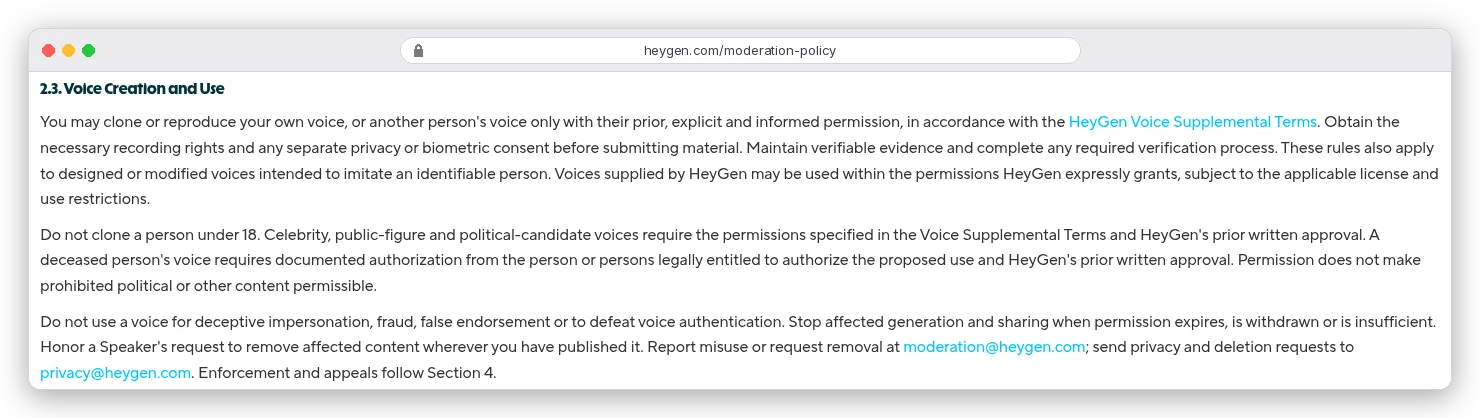
Read the last paragraph twice. Permission can expire or be withdrawn, and when it is, you have to stop generating and remove what you published. A consent email that says "sure, go ahead" won't cover that.
A usable release names the video and the languages. It says the voice will be cloned and the lips altered, where the result will be published, and how the person can withdraw. Keep it with the project files, because HeyGen asks you to "maintain verifiable evidence".
Some people are off limits anyway. HeyGen bans cloning anyone under 18, and celebrity or public-figure voices need its prior written approval.
ElevenLabs works from the other side. Its Prohibited Use Policy has a report form for anyone whose voice "has been used without your consent". Its help centre adds that all generated audio "can be instantly traced back to the user responsible." Our AI voice cloning guide goes deeper on whose voice you can clone.
The law points the same way. In the EU, Article 50(4) of the AI Act says deployers of a deep fake "shall disclose that the content has been artificially generated or manipulated." A lip-synced translation of a real person can fall under that.
Rules differ by country. For a commercial project with other people in it, ask a lawyer.
Step 2: Decide whether you need lip sync
Lip sync matters when a face fills the frame and talks for long stretches: talking-head YouTube, founder videos, testimonials, ads. It barely matters for screen recordings, slides with a voiceover, podcasts, or anything where the speaker is small or off camera.
If you need it, HeyGen gives you two engines, and the choice is made by the shot, not by your budget:
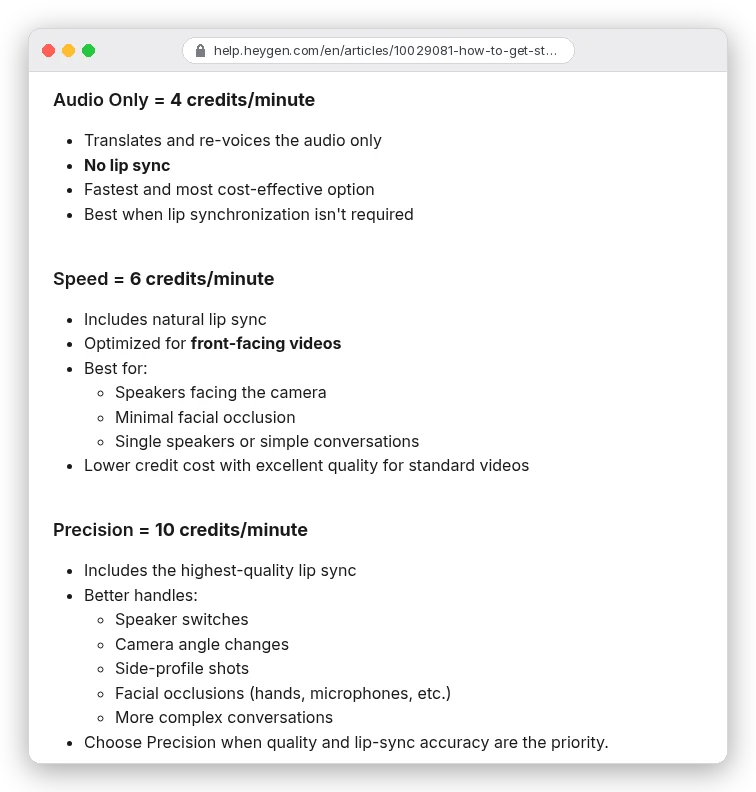
Speed works when the speaker stays "within ~45°" of the camera with nothing in front of the mouth. A handheld microphone, a hand on the chin, two people talking over each other or cuts between angles all push you to Precision. That costs 67% more per minute.
There's also no separate lip-sync switch. HeyGen notes that the engine is the toggle: pick Audio Only and lip sync is off. There's "no translation prompt, tone, or context field" either, which is why the script step below matters so much.
Skip lip sync and both tools are open to you. ElevenLabs keeps the original background audio, handles up to 32 speakers in a file and lets you adjust how closely the dub matches each voice. If you're comparing it with other voice tools, our ElevenLabs alternatives roundup covers the field.
Step 3: Fix the script before you render anything
Every dubbing tool runs the same chain: transcribe, translate, re-voice, then maybe lip sync. A transcript error travels all the way to the final video, and you pay for the render either way.
So read the translated script before the expensive step. In HeyGen that's Proofread, also called Review & Edit, and it's only on Pro ($49 a month), Business, Team and Enterprise.
It costs nothing extra if you go on to generate. The "4 credits per minute proofread fee only applies if you never generate the translation."
Inside Proofread, the Preview tab plays the translated audio against your video with no lip sync. Fix the words there, and only then click Generate Result for the lip-synced render. A few details from HeyGen's proofreading guide save real time:
- Brand Glossary has to be chosen when you create the Proofread. It can't be added later, so set your product names first.
- After you edit a line, a yellow Refresh Voice button means that segment's audio is out of date.
- Narrators who aren't on screen should be marked Off-Screen, or HeyGen may lip-sync their voice onto a face that's visible.
The SRT upload trips people up. Upload one before translating and it's only a reference: HeyGen "re-translates the content." Only an SRT uploaded inside Proofread is "spoken exactly as written." Paid a translator? Upload their file in Proofread.
ElevenLabs splits this differently. Dubbing Studio, on the older v1 model, lets you edit the transcript and translation, reassign speakers and regenerate single clips. But the docs say it's "in maintenance mode", with no new features planned.
On Dubbing v2, transcript editing and regeneration through the API are Enterprise-only. What any API user can do is pass up to 1,000 key terms, such as product names, to steer transcription and translation.
Step 4: Get the voice match right
A good dub sounds like the same person speaking a second language. A bad one sounds like a stranger, or like you with a heavy accent you don't have.
HeyGen's lever is the language variant. A base language such as "English" "preserves the original speaker's voice identity and accent". A localized variant such as "English – American" leans towards a native accent.
HeyGen suggests base for interviews and documentaries, and localized variants for tutorials, demos and corporate content.
ElevenLabs gives you a number instead. On Dubbing v2 the Speaker similarity setting runs from 0 to 10, with a default of 7.
Push it higher and the dub sounds more like the original speaker. The catch, per the docs: it "can also carry over more of the original accent." Lower it for a more natural delivery in languages far from the source.
Timing is the other half of a voice match. A translated line rarely takes exactly as long to say as the original. HeyGen's Dynamic Duration is on by default and lets each segment stretch or squeeze by up to 20%.
That "may affect the total length of your video." Turn it off if the dub has to fit a fixed edit.
Voice still sounds off? HeyGen's own fix is to extract the original audio, clone a custom voice from it and reapply it to the project.
Step 5: Run one language first, then the rest
HeyGen recommends this itself: translate into one language, confirm the quality, then run the others. A job can take up to 10 languages, and a mistake you spot in Spanish would otherwise be repeated nine times.
The arithmetic makes the case. Say you dub a 10-minute video into Spanish, German and Japanese. That's 30 billed minutes, because each language counts separately.
- HeyGen Speed: 180 credits, about 30% of Creator's 600.
- HeyGen Precision: 300 credits, half the month.
- ElevenLabs v1 without watermark: 30 of Creator's 40 included minutes.
- ElevenLabs v2: Creator includes 9 minutes, so the other 21 at $2.45 add about $51, or you move to Pro at $99 for 44 minutes.
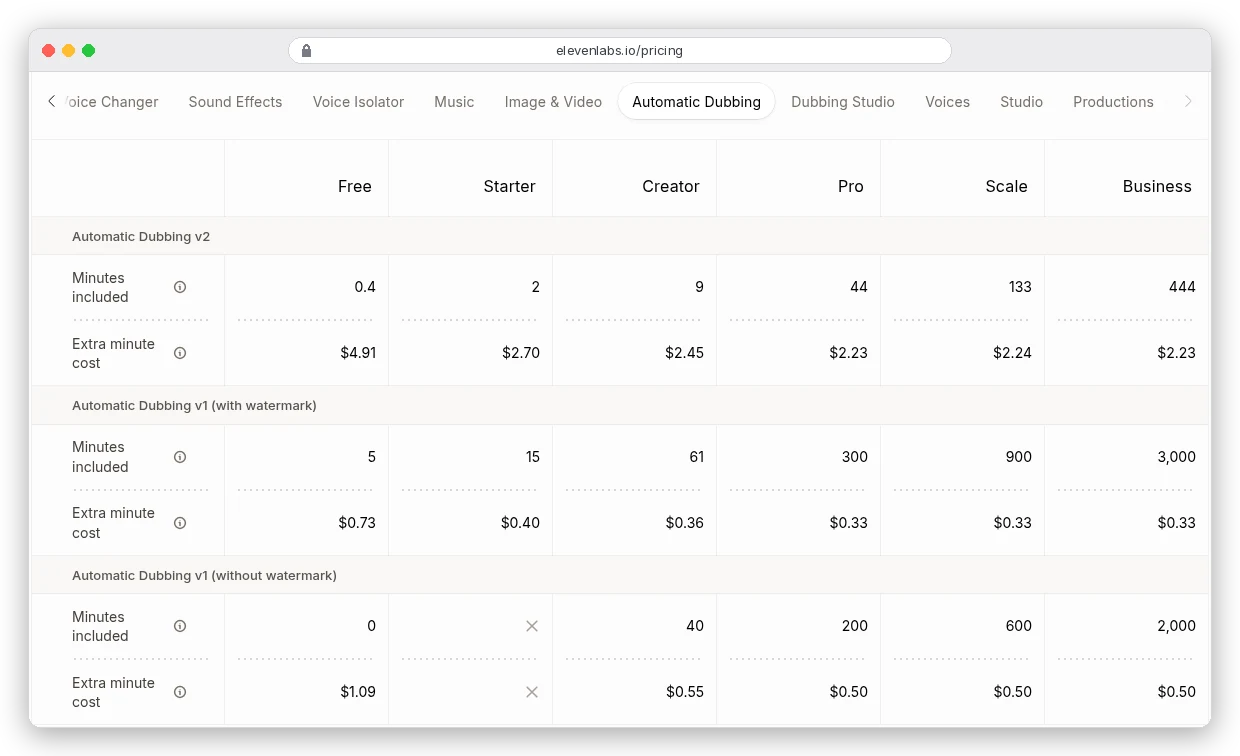
Notice the empty Starter cells: watermark-free v1 dubbing starts at Creator. The first-month offers on the plan cards ($1 Starter "Until Nov 16", $11 Creator) are one-off. Our ElevenLabs pricing breakdown covers how dubbing shares the credit pool with everything else.
Step 6: QA the subtitles and the dub
This is the boring step, and it's the one viewers notice. HeyGen's own FAQ admits "AI translation can't guarantee 100% accuracy."
Export the subtitle file first. With captions on, HeyGen gives you two versions of the video, one with subtitles burned in and one without. "Caption files export as .srt only." Dubbing Studio exports SRT and a CSV with speaker, timings, transcript and translation side by side, which is the easiest file to hand to a reviewer.
Then check, in this order:
- Names, brands and product terms: spelled and spoken right, never translated.
- Numbers, prices, dates and units: "$29" shouldn't become "29 dollars" in one place and "€29" in another.
- Jokes, idioms and calls to action. These are where literal translation fails, and where a native speaker earns their fee.
- Subtitle timing: each line appears while it's being said and stays long enough to read.
- Speaker assignment: in a two-person video, check that no line jumped to the wrong voice.
- On-screen text. Titles and graphics baked into the picture aren't translated by HeyGen, so a German dub over English slides needs new slides.
You can't hear most of these errors yourself in a language you don't speak, so hand the CSV or SRT to a native speaker. You're probably thinking that defeats the point of AI dubbing. It doesn't: you're paying for a read-through, not a recording session.
Step 7: Put the dub on your master and publish
Here's a line in ElevenLabs' docs that most guides skip:
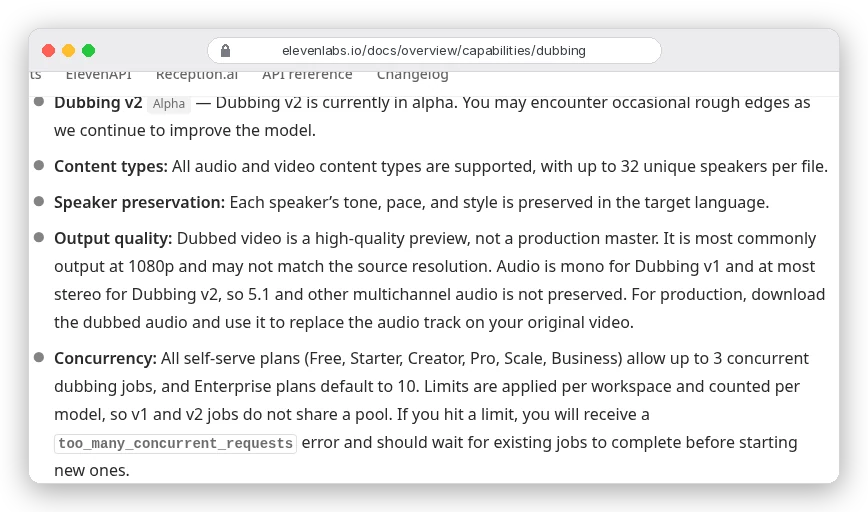
So for an audio-only dub, download the dubbed audio and put it on your original video instead of publishing the tool's MP4. With ffmpeg that's one command. It copies your video stream untouched and swaps in the Spanish track:
ffmpeg -i master.mp4 -i dub_es.wav -map 0:v -map 1:a -c:v copy -c:a aac -b:a 192k -metadata:s:a:0 language=spa -shortest master_es.mp4We ran it on a five-second synthetic test clip with ffmpeg 7.1. ffprobe showed the video stream copied and one AAC audio track tagged Spanish.
If you're new to ffmpeg, our guide to turning long videos into Shorts walks through installing it. A lip-synced dub is different: the picture itself changed, so publish HeyGen's render.
On YouTube you don't need a second channel. Multi-language audio lets you add dubbed tracks to one video, and viewers hear their preferred language automatically.
Three conditions apply. Your channel needs Advanced features, and the file must be audio-only and "roughly the same length as your video". Any automatic dub YouTube already made in that language has to be deleted first.
Then tick the right box. YouTube's AI disclosure rules cover content that "makes a real person appear to say or do something they didn't do." A lip-synced dub of a real speaker fits that description, so select Yes under "AI use". YouTube says disclosure alone won't limit a video's reach.
Mistakes that ruin a dub
- Rendering every language before checking one. You pay for the same mistake again in every language.
- Uploading the translator's SRT before translating. HeyGen treats it as a reference and re-translates it.
- Choosing Speed for a panel discussion. Two speakers, a microphone and camera cuts are Precision territory.
- Losing the sound effects. HeyGen always strips them from translated audio, so keep a separate music and effects mix to lay back under an audio-only dub.
- Dubbing a guest without a written release that covers cloning, lip sync and withdrawal.
- Publishing the tool's preview MP4 when the docs tell you to replace the audio on your master.
Which route should you take?
If you're on camera and the face is the point, use HeyGen. Start on Speed and switch to Precision for anything with angles or a second speaker. Pay for Pro so you can proofread.
HeyGen's credits not a fit? Our HeyGen alternatives compare per-minute costs. For videos that start from a script rather than a recording, see our AI avatar generator comparison.
If it's a screen recording, a course, a podcast or anything where lips don't show, use ElevenLabs on Creator. Pick v1 without watermark when cost per minute matters. Pick v2 when the voice match matters more, and put the audio back on your own master.
And whichever you choose, get the consent in writing first and put a native speaker on the subtitle file before anything goes live.