You install Claude Code, open a project, type a request, and it starts editing files and running commands. Then a friend tells you to "just add a CLAUDE.md", someone else says you need skills, and a third person swears by MCP.
This Claude Code for beginners guide sorts those pieces out. Each one does a different job and loads at a different time. Stack all of them on day one and you fill Claude's context before you've typed a request.
One question matters more than the rest, and almost nobody asks it: which of these files can actually stop Claude from doing something? Fewer than you'd think. We'll get there.
Based on Anthropic's Claude Code documentation and the claude.com pricing page, checked on 22 October 2026. We didn't run a hands-on install for this guide; the worked example uses a made-up project.
What is Claude Code, and what will you have by the end?
Claude Code is Anthropic's coding agent. In the docs' words, it "reads your codebase, edits files, runs commands, and integrates with your development tools", in a terminal, an IDE, a desktop app or the browser. This guide sticks to the terminal version, which the docs call "the full-featured CLI".
By the end you'll have five things in place:
- Claude Code installed with the official installer and signed in on a plan that includes it.
- A short
CLAUDE.mdwith the facts Claude needs in every session. - One skill for a job you repeat.
- One MCP server, connected at the right scope.
- Permission rules that block the commands you never want run without you.
Before any of that, you need an account that can open the door.
Which Claude plan do you need for Claude Code?
Not the free one. Anthropic's setup page says it plainly: "The free claude.ai plan does not include Claude Code access."
You need Pro, Max, Team, Enterprise or a Claude Console (API) account.
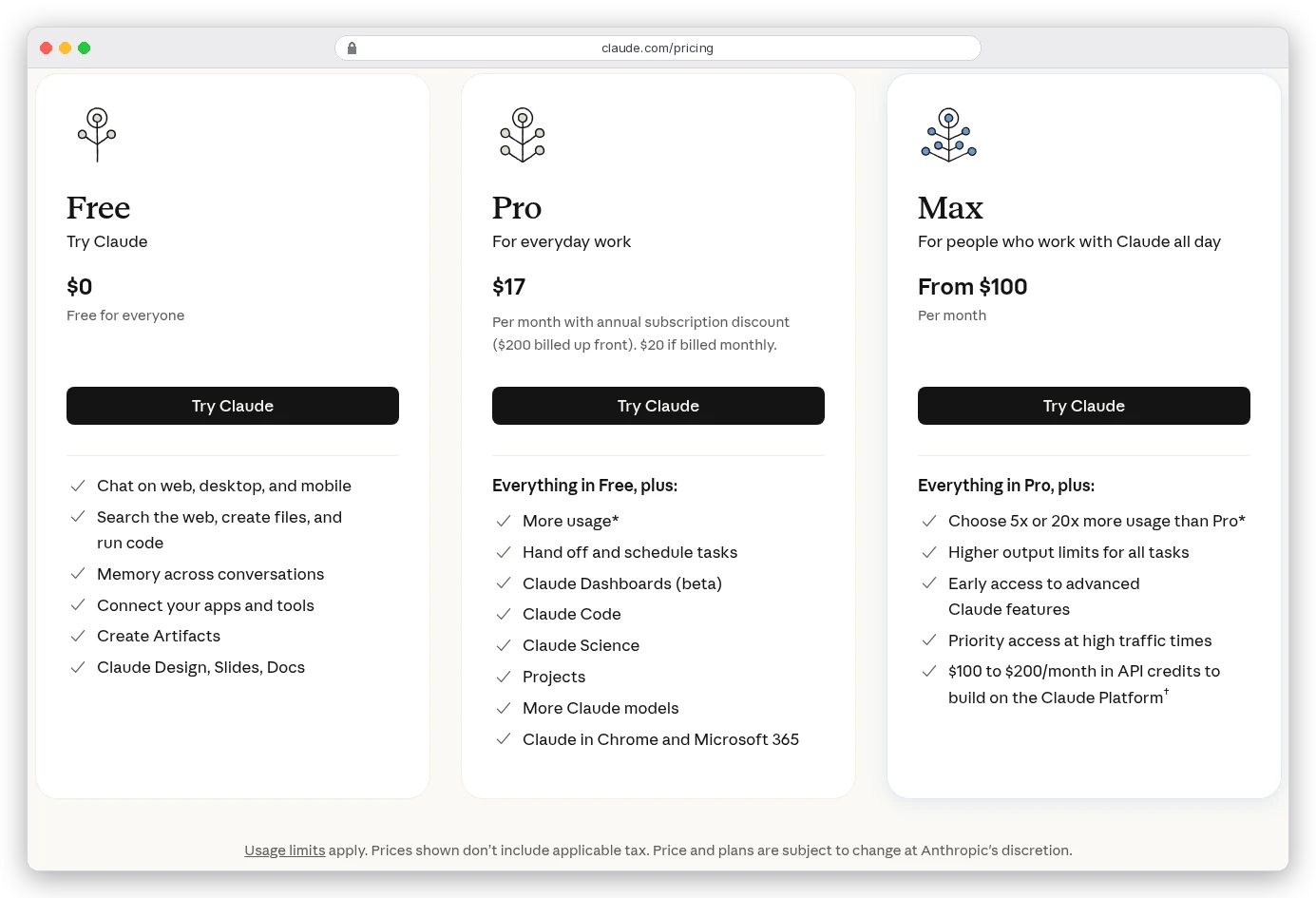
Here's what each option costs today, in US dollars before tax:
| Plan | Price on claude.com | Claude Code? |
|---|---|---|
| Free | $0 | No |
| Pro | $17/month billed yearly ($200 up front), or $20 monthly | Yes |
| Max | From $100/month, with 5x or 20x Pro's usage | Yes |
| Team | Standard seat $20/seat/month yearly or $25 monthly; premium seat $100 yearly or $125 monthly | Yes |
| Enterprise | US$20/seat/month billed yearly, 20-seat minimum, plus usage at API rates | Yes |
| Console (API) | Pay per token | Yes |
Pro on monthly billing comes to about 67 cents a day. That's the cheapest way in, and for learning it's enough.
You're probably wondering whether the API is cheaper than a subscription. For light use it can be, but the meter never stops.
Anthropic's costs page puts the average across enterprise deployments at "around $13 per developer per active day and $150-250 per developer per month". That's more than Pro or the entry Max tier for someone using it daily.
So start on Pro, and move to Max only when you keep hitting the usage limit. Every plan's card carries the same footnote: "Usage limits apply." Now, the install.
How do you install Claude Code?
One command. On macOS, Linux or WSL, open a terminal and paste:
curl -fsSL https://claude.ai/install.sh | bashOn Windows, use PowerShell:
irm https://claude.ai/install.ps1 | iexOr, from the older Command Prompt (CMD):
curl -fsSL https://claude.ai/install.cmd -o install.cmd && install.cmd && del install.cmd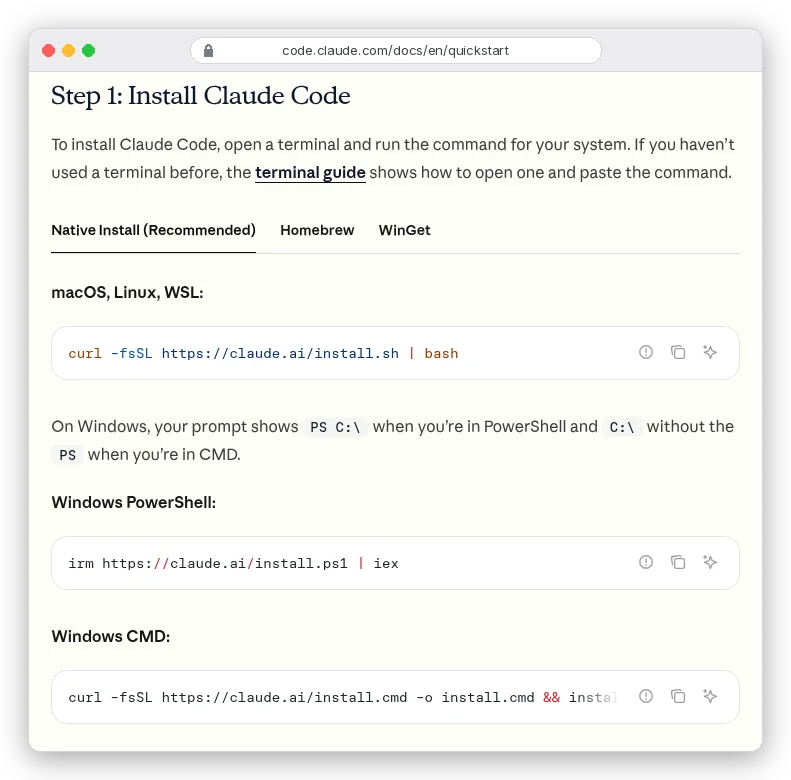
The installer shows no progress bar while it downloads, so give it a minute. Then open a new terminal window and check it worked:
claude --versionYou should see a version number followed by "(Claude Code)". If your shell says claude isn't found, the install folder isn't on your PATH yet; the docs' troubleshooting page has the fix.
Do you need Node.js?
Not anymore, and this trips up a lot of people following older tutorials. Many still say to install Node 18 and run npm install -g.
Today the native installer needs no Node at all. The npm route still exists, but the setup docs say the package "requires Node.js 22 or later".
The npm registry agrees ("node": ">=22.0.0"), and Anthropic's GitHub README now says "Installation via npm is deprecated." If you do use npm, never prefix it with sudo; the docs warn against exactly that.
Three small things that save an hour
- On native Windows, the docs recommend installing Git for Windows so Claude Code can use its Bash tool. Without it, Claude Code falls back to PowerShell.
- The native install updates itself in the background. Homebrew and WinGet installs don't, so you'll run
brew upgrade claude-codeorwinget upgrade Anthropic.ClaudeCodeyourself. - If something feels off,
claude doctorprints read-only diagnostics about your install and settings without starting a session.
The minimums, per the setup page: macOS 13, Windows 10 1809, Ubuntu 20.04 or Debian 10, and 4 GB of RAM.
Your first session: signing in and the commands you'll use daily
Move into a project folder and start it:
cd /path/to/your/project
claude
On first run, Claude Code asks you to log in and finishes the sign-in in your browser. After that your credentials are stored.
A good first prompt, straight from the quickstart, is what does this project do? You don't need to paste files in; the docs say Claude Code "reads your project files as needed."
A handful of commands cover most days:
| Command | What it does |
|---|---|
claude | Start an interactive session |
claude -c | Continue the most recent conversation in this folder |
claude -p "query" | Run one request and exit |
/clear | Start fresh inside a session |
/context | See what's taking up space in the context window |
/model | Switch models mid-session |
Shift+Tab | Cycle permission modes |
Use /clear more than feels natural. The costs page says stale context "wastes tokens on every subsequent message", which on a subscription means you reach your limit sooner.
On model choice, the docs say Sonnet "handles most coding tasks well and costs less than Opus". Opus is for hard reasoning. If you're weighing Anthropic's newest models, our Claude Fable 5.1 vs Opus 5 comparison covers price and API differences.
That Shift+Tab line deserves more than a table cell, though. Recent versions start in a mode most beginners never chose. We'll come back to it after the files.
What should go in CLAUDE.md?
Every Claude Code session "begins with a fresh context window". Claude doesn't remember yesterday's chat. CLAUDE.md is the note it reads at the start of every session, so it holds the things you'd otherwise explain again.
You don't have to write it from nothing. Run /init inside a session and Claude reads your codebase and drafts one with build commands, test instructions and conventions it finds. If a file already exists, /init suggests changes instead of overwriting it.
Where the file lives decides who it affects:
| File | Applies to |
|---|---|
~/.claude/CLAUDE.md | You, in every project |
./CLAUDE.md or ./.claude/CLAUDE.md | Everyone on the project, shared through git |
./CLAUDE.local.md | Only you, in this project (add it to .gitignore) |
Write instructions Claude can check. The docs' examples: "Run npm test before committing" instead of "Test your changes", and "Use 2-space indentation" instead of "Format code properly".
Keep it short. Anthropic's target is under 200 lines per CLAUDE.md file. Why? "Longer files consume more context and reduce adherence." The whole file is loaded into every session, even the ones where most of it doesn't apply.
To confirm the file loaded, run /context and look under Memory files.
So what happens to the long, step-by-step stuff that doesn't fit in 200 lines? That's what skills are for.
Skills: when should a note become a skill?
A skill is a folder with a SKILL.md file inside. The file has a short header that says when to use it, then the instructions. You can call it yourself with /skill-name, or Claude loads it on its own when your request matches the description.
The difference from CLAUDE.md is timing. A skill's body "loads only when it's used", the docs say, "so long reference material costs almost nothing until you need it." Only the one-line description sits in context all the time.
That gives you a simple rule. A fact Claude needs every session goes in CLAUDE.md. A procedure you run sometimes (release steps, a review checklist, how to cut a video) becomes a skill.
Personal skills live in ~/.claude/skills/<name>/SKILL.md and work in all your projects. Project skills live in .claude/skills/<name>/SKILL.md and travel with the repo. Here's a minimal one:
---
description: Writes release notes from the commits since the last tag. Use when the user asks for release notes or a changelog.
disable-model-invocation: true
---

1. List the commits since the last git tag.
2. Group them into Added, Changed and Fixed.
3. Write each entry as one plain sentence for users, not developers.
That disable-model-invocation: true line means only you can trigger it, by typing /release-notes if the folder is named release-notes. The docs recommend it for anything with side effects, like deploys: "You don't want Claude deciding to deploy because your code looks ready."
If you've used the older .claude/commands/ files, nothing broke. Custom commands "have been merged into skills", and the old files keep working.
Want to see a real, longer skill? Our guide to editing Instagram Reels with Claude walks through a full video-editing SKILL.md. The Claude video editing prompts collection shows the kind of request a skill can turn into a one-word command.
Skills teach Claude how to do something. They don't give it access to anything new. For that you need MCP.
MCP: how do you connect Claude Code to other tools?
MCP, the Model Context Protocol, is an open standard for plugging AI tools into other software. An MCP server gives Claude Code tools for one service: your issue tracker, a database, Notion, a browser.
The docs give a good test for when you need one: "when you find yourself copying data into chat from another tool". If you keep pasting tickets or query results into the chat, connect the source instead.
Most services now offer a remote HTTP server, which the docs recommend. Adding one is a single command, here with the docs' Notion example:
claude mcp add --transport http notion https://mcp.notion.com/mcpThen claude mcp list shows what's configured, and /mcp inside a session shows status and handles sign-in. Local servers run as a program on your machine. Put -- before their own command, as in the docs' pattern claude mcp add --transport stdio myserver -- npx server.
The part beginners miss is scope, because it decides where a server shows up:
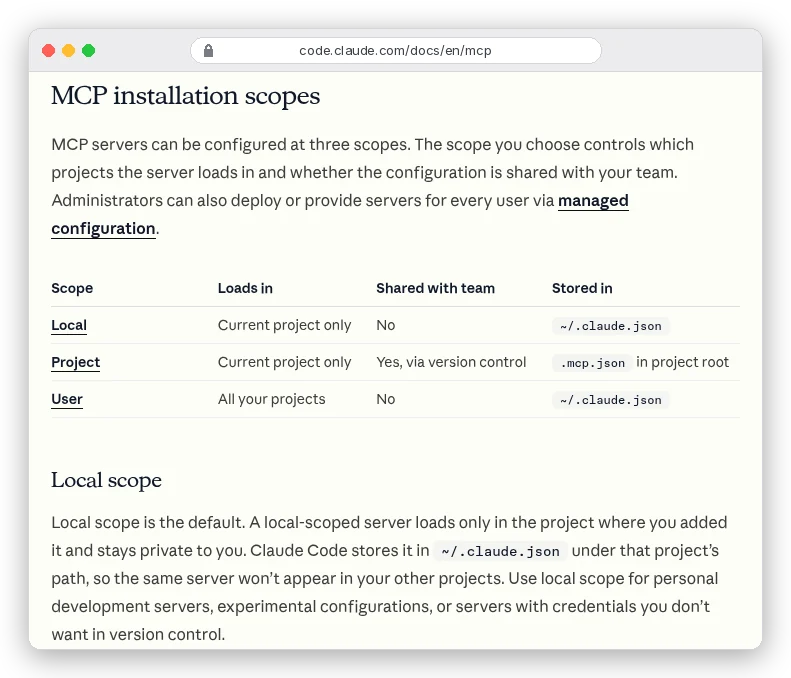
So a server you add with no flag only appears in the folder you added it from. Add --scope user for one you want everywhere, or --scope project to write it to a .mcp.json file your team gets through git. Claude Code asks you to approve project servers from .mcp.json before using them.
Two cautions from the docs. First: "Verify you trust each server before connecting it." A server that fetches web pages can feed Claude instructions hidden in that content.
Second, MCP has a context cost. Tool definitions are deferred by default, but the costs page still says CLI tools like gh are "more context-efficient than MCP servers". If a command-line tool does the job, let Claude run that.
A common first server is a web scraper, so Claude can read live pages. If that's your plan, our guide to web scraping for AI explains why the format of those pages matters for token use.
Now back to the question from the top. With all three in place, what actually stops Claude from running a command you didn't want?
Permissions: the only layer Claude can't talk its way around
None of the files above. CLAUDE.md shapes behaviour, but the docs say Claude treats it "as context, not enforced configuration". Skills are instructions too.
The enforcement lives in permission rules and modes. The docs spell out the split: "Permission rules are enforced by Claude Code, not by the model. Instructions in your prompt or CLAUDE.md shape what Claude tries to do, but they don't change what Claude Code allows."
So "never push to main" in CLAUDE.md is a request. A deny rule is a lock.
Which mode are you in right now?
Probably auto mode. Since version 2.1.283, auto is the built-in starting mode for interactive terminal and VS Code sessions. In auto mode Claude runs without routine prompts, and "a second model, the classifier, reviews actions instead of you."
Press Shift+Tab to cycle. From auto, the first press goes to Manual (config value default), then acceptEdits, then plan:
| Mode | Runs without asking | Good for |
|---|---|---|
Manual (default) | Reads only | Unfamiliar code, sensitive work |
acceptEdits | Reads, file edits, common file commands like mkdir and mv | Iterating on code you're reviewing |
plan | Reads; edits wait until you approve a plan | Exploring before changing anything |
auto | Everything, with background safety checks | Long tasks, fewer prompts |
bypassPermissions | Everything | Isolated containers and VMs only |
For your first week on a real project, Manual or plan mode is the calmer choice. You'll see every command before it runs and learn what Claude actually does. Start a session in plan mode with claude --permission-mode plan.
Write your first rules
Rules go in a settings file. .claude/settings.json is shared with your team; .claude/settings.local.json is just for you; ~/.claude/settings.json covers all your projects. This example uses the rule shapes from the docs:
{
  "permissions": {
    "allow": ["Bash(npm run *)", "Bash(git commit *)"],
    "deny": ["Bash(git push *)", "Read(./.env)"]
  }
}
Rules are checked deny first, then ask, then allow, so a deny always wins.
A broad deny like Bash(git push *) blocks every push, even if a narrower allow rule matches. And deny rules apply in every mode, auto included. You can view and edit all of this with /permissions.
One detail worth knowing: if your project has a .claudeignore file from an old tutorial, the docs say it "has no effect". Use a Read deny rule instead.
A worked example: setting up one small project
Say you run a small Next.js blog (hypothetical) and want Claude Code to help with posts and fixes without touching your production secrets. Here's the order that keeps it simple.
- Install with the native command, run
claude --version, thencdinto the repo and runclaudeto sign in with Pro. - Switch to plan mode with
Shift+Taband ask "what does this project do?" Read the answer before letting it change anything. - Run
/init. Trim the draft to the facts that matter every time:npm run devto start, posts live incontent/posts/, runnpm run lintbefore committing. Aim for 30 lines, not 300. - Create
.claude/settings.jsonwith a deny onRead(./.env)andBash(git push *), and an allow forBash(npm run *). Commit it. - Your release checklist is 25 steps long. It doesn't belong in CLAUDE.md, so make it a project skill at
.claude/skills/release/SKILL.mdwithdisable-model-invocation: true, and run it as/release. - You keep pasting drafts from Notion. Add the Notion MCP server at local scope, sign in through
/mcp, and ask Claude to pull the draft itself.
Notice what you didn't do. No ten MCP servers, no 400-line CLAUDE.md, no bypass mode. Each piece went in when a real need showed up.
Common beginner mistakes
- Treating CLAUDE.md as a security control. It's context. Use a deny rule for anything that must never happen.
- Putting every procedure in CLAUDE.md. It loads into every session; long workflows belong in skills.
- Installing Node 18 and using npm because an old tutorial said so. Use the native installer, or Node 22+ if you must use npm.
- Running
sudo npm install -g. The docs warn it causes permission problems and security risks. - Adding an MCP server and wondering why it's missing in another project. Local scope is the default; use
--scope user. - Connecting MCP servers you don't trust, or ones you no longer use. Disable unused servers in
/mcp. - Never running
/clear. One long session about five different tasks drags old context into each new request. - Using
bypassPermissionson your own laptop. The docs reserve it for isolated containers and VMs.
Where should you start?
If you're brand new and just curious, get Pro on monthly billing and install with the native command. Spend your first sessions in plan mode, asking questions about a project you know. Skip skills and MCP for now.
Bringing Claude Code into a real codebase? Run /init and trim CLAUDE.md under 200 lines. Commit a settings file with your deny rules. Then add one skill and one MCP server, and only when a repeated task or a copy-paste habit asks for them.
And if you're setting it up for a team, put the rules in the shared .claude/settings.json and the servers in .mcp.json. Those are the two files that make everyone's Claude behave the same.