You've got forty products and one decent photo of each, taken on the kitchen counter next to a window. The listing wants a pure white main image, a few lifestyle shots and, for the T-shirts, a person wearing them. The studio quote came back higher than your first production run.
AI product photos can close most of that gap. A shoot's cost is the set, the model and the day rate, and a generator replaces all three. What it can't replace is the truth about your product.
There's also one rule on Amazon and one on Google that most guides skip, and both can get an AI image pulled. We'll get to them.
Written from Amazon Seller Central, Google Merchant Center, ImagineArt, Google Gemini API and Shootify pages, checked on 26 October 2026. We didn't generate or upload product photos for this guide; the cost arithmetic is ours.
What you'll end up with
A full image set for each SKU, built from one honest photo you take yourself:
| Image | What it shows | The rule that matters |
|---|---|---|
| Main image | The product alone on pure white | Amazon: RGB 255, 255, 255 and the product filling 85% of the frame |
| Lifestyle scenes | The product in use, on a counter, in a bag, on a shelf | Real scale and colour; no props that don't ship with it |
| On-model shots | Apparel on a person | Amazon wants adult clothing on a standing model, and AI people tagged |
| A short clip | A spin or a slow push-in made from the best still | Optional, but Amazon recommends one video per listing |
Before any of the steps, though, the question that decides whether this is worth your afternoon: how much cheaper is it, really?
What does an AI product photo cost per SKU, compared with a shoot?
Start with the studio side, using a real price list. Shootify publishes per-photo rates on its pricing page, updated this month:
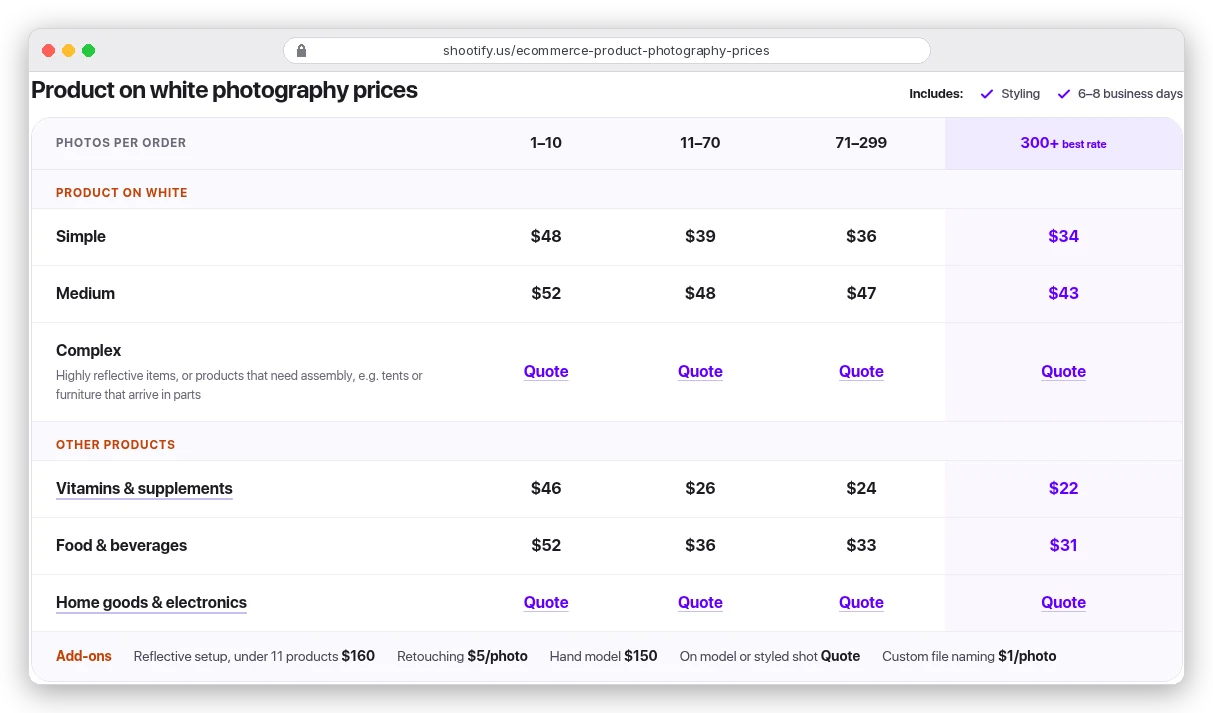
Say you sell a skincare line with 12 SKUs and want 4 images of each. That's 48 photos at the $39 "Simple" rate, plus $5 retouching per photo. Total: $2,112, or $176 per SKU.
And that's the cheap version. Everything in it is a white-background shot; styled and on-model work is "Quote" on the same table.
Now the AI side, on ImagineArt. Its docs list Nano Banana 2.1 at 27 credits per image and the basic upscaler at 8. Here are the plans, with the yearly toggle on:
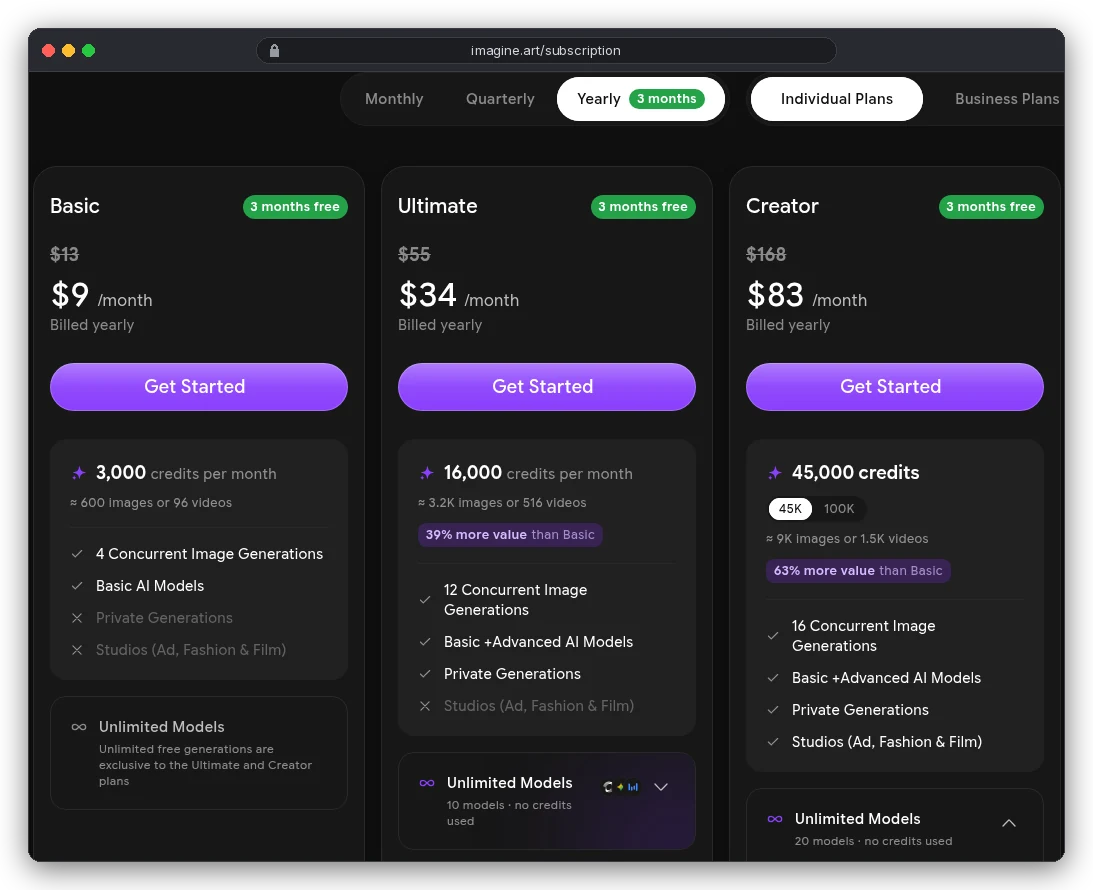
Assume you keep 4 images per SKU and need 4 tries to get each keeper. That's 16 generations at 27 credits plus 4 upscales, or 464 credits per SKU. The whole 12-SKU line needs 5,568 credits.
On Ultimate billed yearly ($34 for 16,000 credits), that's about $1 of credits per SKU. Even if you paid for a month just for this job, it's $34 across 12 products: $2.83 each.
So $176 against under $3. Roughly 60 times cheaper, on our arithmetic.
You're probably thinking the cheap plan does it for less again. On paper, yes: Basic works out to $1.39 per SKU.
But 5,568 credits won't fit in Basic's 3,000 a month. And look at the Basic card again: Private Generations has a cross next to it, so your unreleased products sit in a public gallery.
Two more things before you trust the gap. Studios (Ad, Fashion and Film) appear only on Creator, which matters for apparel in Step 4. And ImagineArt's own docs say the tooltip in the app is the final word on credit costs, so check it before a big batch.
What you need before you start
- One sharp photo of each product, front-on, with the label readable and every edge visible. A phone near a window is enough; ImagineArt's Shopify app docs say "a plain supplier shot is enough" for background and relight work.
- A back or side photo for anything where those views matter (apparel needs front and back).
- The image rules for every place you sell. This guide covers Amazon and Google Shopping.
- A plan with private generations if the products aren't public yet.
Step 1: Take one honest source photo
Every AI image in the set inherits this photo. Scuff the cap or blur the label here and the generator will copy the flaw or invent a fix. An invented label is worse.
Shoot it at the highest resolution your phone allows. Amazon accepts 500 to 10,000 pixels on the longest side and recommends 1,000 or more so zoom works. It also says: "Do not artificially enlarge small images."
Google Merchant Center will require at least 500 × 500 pixels from 31 January 2027 and recommends 1,500 × 1,500 or above. A 12-megapixel phone photo clears both with room to crop.
Step 2: Make the white-background main image
The main image is the one shoppers see in search, and it has the strictest rules. Amazon's product image requirements ask for "a pure white background (RGB color values: 255, 255, 255)". The product fills 85% of the image, one unit only, with no props that don't come in the box.
For this image you don't want a generator to redraw your product at all. You want a cutout.
Run Remove Background on your source photo. ImagineArt has it as a standalone tool and a workflow node, and its Shopify app lists it under Edit and enhance. Then place the cutout on pure white and crop so the product fills about 85% of the frame.
Check the corners with an eyedropper. Off-white from a soft shadow is the usual failure, and Amazon may pull a listing from search until it has a compliant main image.
Google is less strict about the colour but strict about clutter. Its image guidelines disapprove images with "promotional elements or overlays": prices, "Free shipping", badges, watermarks or logos added in post.
Step 3: Swap backgrounds and build lifestyle scenes
This is where AI earns its keep, and where a vague prompt wastes the most credits. ImagineArt's edit docs make the point in one line. Don't write "change the background"; write "replace the background with a sun-drenched Tuscan vineyard at golden hour."
Google's Gemini API docs give a product template that works in most tools. Fill in the brackets:
A high-resolution, studio-lit product photograph of a [product description]
on a [background surface/description]. The lighting is a [lighting setup,
e.g., three-point softbox setup] to [lighting purpose]. The camera angle is
a [angle type] to showcase [specific feature]. Ultra-realistic, with sharp
focus on [key detail]. [Aspect ratio].
That template describes a new image. For your real product you want an edit, so attach the source photo and use Google's "change only" pattern instead:
Using the provided image, change only the background to a pale travertine
bathroom shelf with soft morning window light from the left. Keep the bottle,
its label text, cap and colours exactly the same, preserving the original
lighting on the product.
Two habits make scenes believable. First, name every detail you need kept: Google's docs say critical details survive an edit when you "describe them in great detail."
Second, keep scale honest. A 30 ml serum beside a tiny teacup reads as a big bottle. Amazon's main-image rule asks for the "real scale, quantity, and color", and the same mistake misleads in any image.
Our guide to writing AI image prompts covers light, lens and camera wording in more depth.
For a series, the product has to look identical across ten scenes.
ImagineArt's Characters feature takes up to 10 reference images. Despite the name, its docs say it covers "custom characters and products", and you call it into any prompt with @ and the name you saved it under. The same reference method from our consistent characters guide applies to a bottle.
Step 4: Put apparel on a model
On-model shots are where a studio gets expensive. Shootify's half-day rate is $1,800 for up to 25 items, and a non-agency model is booked separately from $400. That's $88 per item before $8-a-photo retouching, so about $120 per item for four retouched looks.
ImagineArt's route is Fashion Studio. A Catalog shoot is built for "clean, consistent studio shots for product listings." You pick one of over 100 preset models, upload front and back photos of the garment, then set a background and pose. Lookbook mode puts one model in several outfits in one run.
Now look back at the pricing screenshot. Fashion Studio sits under Studios, which only the Creator plan includes ($83 a month billed yearly). Spread over 25 items in a month, that's $3.32 an item, though the docs we read don't list Fashion Studio's per-image credits.
The Shopify app also lists "Outfit try-on" and "AI clothes changer" running on your own ImagineArt credits. Its docs don't say which plan includes those tools, so check before you upgrade for them.
Then there's Amazon. Adult clothing goes "on a model", and "the model must be standing, not sitting, kneeling, leaning, or lying down." And if that model is AI-generated, there's a second rule:
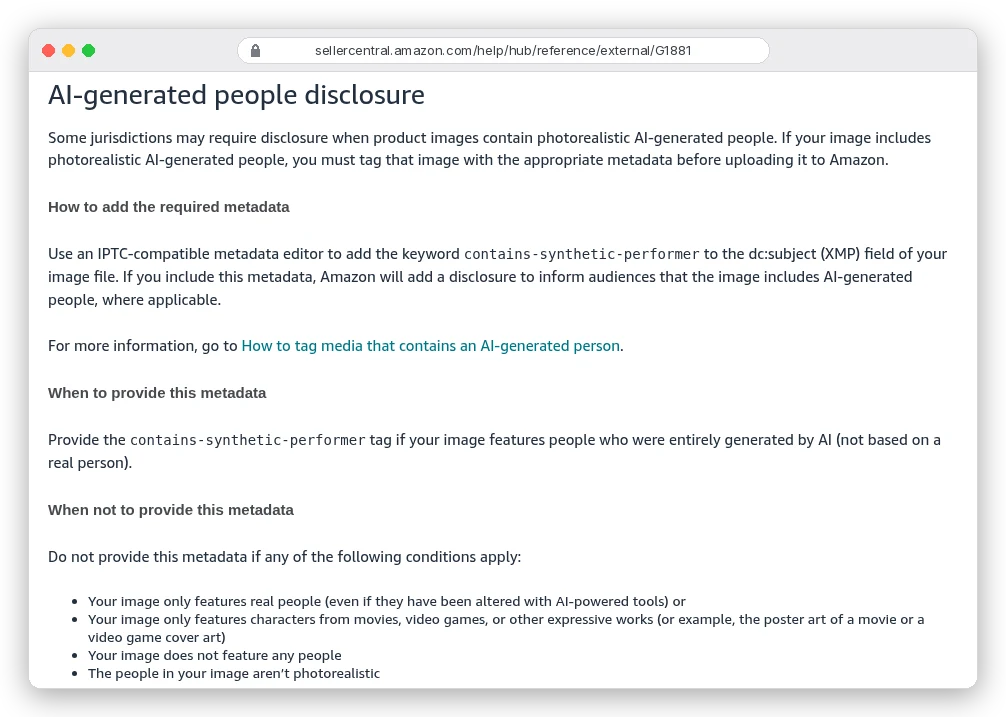
So a fully AI model gets the contains-synthetic-performer keyword in the image's XMP subject field, and Amazon adds a disclosure. A real person you photographed and then edited with AI doesn't. Neither does a product shot with no people in it.
If you upload a real person's photo to build a model, which Fashion Studio allows, get their written consent for commercial use first.
Step 5: Keep the AI label inside the file
Google goes further than Amazon. It wants every generative image labelled, people or not:
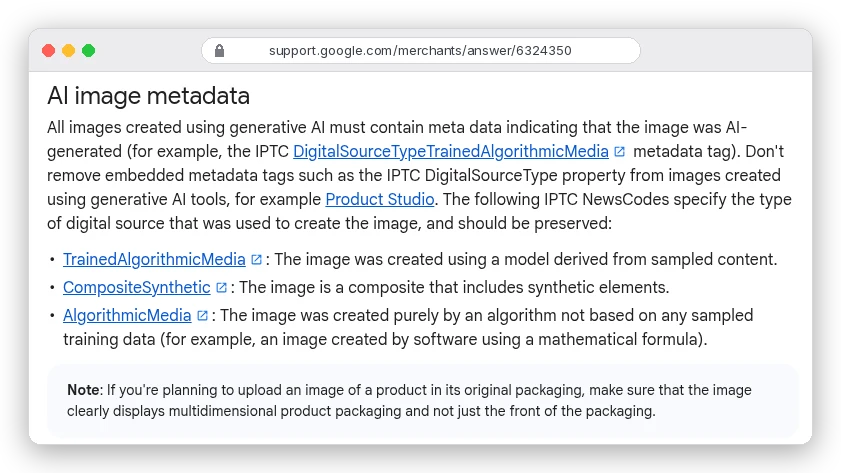
Note the middle code. A real product photo with an AI background is a composite, so CompositeSynthetic is the honest label for most lifestyle scenes in this guide.
The trap is the export, not the generation. A tool may write the tag, then a resize script, an image optimiser or a "save for web" step strips metadata to save bytes.
Open one finished file in a metadata viewer (exiftool or any IPTC-aware editor) and confirm the DigitalSourceType field survived. Then fix the step that dropped it.
Google's models also add a SynthID watermark to every image, according to the Gemini API docs. That isn't a substitute for the metadata Merchant Center asks for.
Step 6: Turn the best still into a clip
Amazon recommends at least six additional images and one video per listing. Your best lifestyle still is a ready-made first frame.
ImagineArt's Shopify app lists a 360° rotation tool. It spins "a single product photo into a smooth turntable video." For anything more than a spin, our image-to-video guide covers keeping the label from warping once the camera moves.
Mistakes that get AI product photos rejected or returned
- Letting the generator redraw the label. Use a cutout for the main image and "keep the label exactly the same" in every edit, then read the label letter by letter.
- A near-white background. Check the corners for 255, 255, 255 before you upload to Amazon.
- Props that don't ship. A matching towel next to the serum suggests it's included.
- Wrong scale. If shoppers expect a big jar and get a sample-sized one, that becomes a return.
- Generating on a plan with public generations while the product is still under wraps.
- Stripping metadata on export, which removes the AI label Google asks you to keep.
- Upscaling a tiny source photo to hit a size minimum, which Amazon tells sellers not to do.
Can you use AI product photos commercially?
On ImagineArt, yes, on a paid plan. Its FAQ puts it this way: "paid subscribers have the freedom to incorporate generated images into commercial projects." It also asks you not to reproduce logos or trademarks you don't own.
Owning the images is weaker. The same FAQ says AI-generated art "cannot be copyrighted because it lacks human authorship" under current U.S. law.
Your product photo underneath is still yours; a fully generated background or model may not be. This isn't legal advice.
Which route fits your catalog?
Selling simple, non-reflective products on white? Shoot one good phone photo, cut it out, and skip the studio. The main image doesn't need a generator at all.
Need lifestyle scenes for 10 to 50 SKUs? This is the clearest win: ImagineArt Ultimate covers a dozen products a month for well under $3 each on our numbers, with private generations. Our ImagineArt review covers where it's weaker.
Selling apparel? Price Creator against a half-day shoot, and budget time for tagging every AI model on Amazon.
And for hero shots of reflective, complex or high-ticket products, the studio still earns its quote. If you want to compare generators beyond ImagineArt, see our roundup of the best AI image generation tools.