You generated forty images to get one you love. The light, the face and the composition are right.
Then you notice the sixth finger. Or the coffee cup floating off the table edge. Or that it's square and you needed a 9:16 Story.
The reflex is to hit generate again. That's how a month of credits goes on a picture you already had.
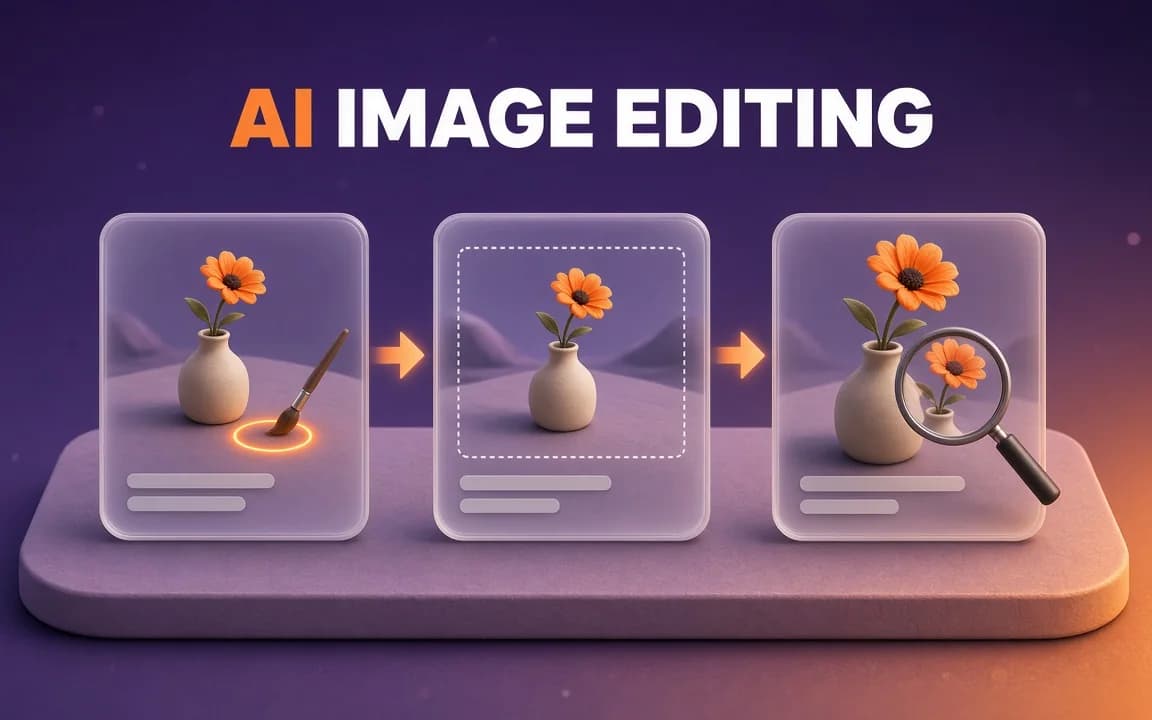
AI image editing gives you three better moves: inpainting fixes a part, outpainting adds canvas, upscaling adds pixels. Picking one is the easy half.
The hard half: popular tools don't edit the way you'd assume, and one defaults to a model that costs three times more per try. We'll get to both.
Written from OpenAI, Google Gemini API, Adobe, ImagineArt and Real-ESRGAN documentation and tool pages, checked on 30 October 2026. We didn't run edits for this guide; the cost arithmetic is ours.
Inpaint, outpaint or upscale: which edit does your image need?
Ask what's actually wrong with the picture. The answer picks the tool:
| What's wrong | Use | What changes |
|---|---|---|
| One area is broken: a hand, a stray object, a wrong colour | Inpainting | Only the area you mark |
| The picture is good but the shape is wrong | Outpainting | New canvas around the original |
| Right picture, right shape, too small or soft | Upscaling | Pixel count, and sometimes detail |
| The light, style, pose or angle is wrong everywhere | Regenerate | Everything |
That last row matters more than it looks. Editing works when most of the image is worth keeping. If you'd describe the problem as "the whole vibe", no mask will save it.
Our rule of thumb: if the part you'd change covers more than about a third of the frame, or touches the lighting, regenerate. Write a better prompt instead. Our AI image prompt guide covers how to write that prompt so the second roll lands closer.
Under a third, and local? Edit. Which brings us to the thing most tutorials skip.
Your mask isn't a stencil
Most people picture inpainting like a stencil. You paint over the bad hand, the model repaints only inside your brush strokes, and every other pixel stays exactly as it was.
That's true in some tools and not in others. It depends on how the tool takes your instructions.
OpenAI's GPT Image models accept a mask. But the docs are blunt about what the mask does:
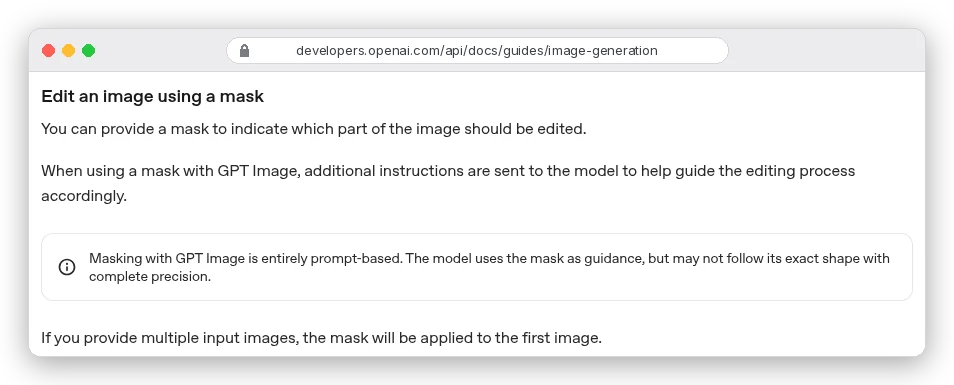
Guidance, not a boundary. The model reads your mask as a strong hint, then regenerates the image.
Pixels outside the mask can shift. Usually you won't notice. On a product label or a face you need to stay identical, you will.
Google's Gemini image models (the ones everyone calls Nano Banana) go further. There's no brush at all. The docs call it "semantic masking": you describe the region in words.
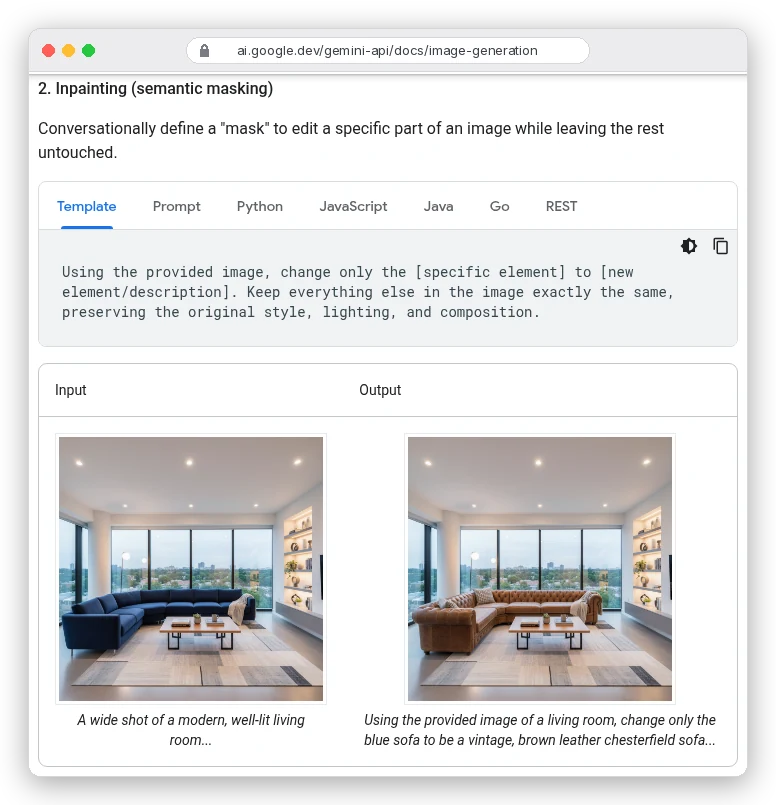
So the words "Keep everything else in the image exactly the same" are doing the job a mask would do. Leave them out and the model feels free to "improve" the rest of your picture.
Photoshop's Generative Fill sits at the other end. You make a selection with a normal selection tool, and the generated pixels land inside it as a separate layer. Adobe's help page calls it non-destructive, and the original stays underneath.
So why not always use Photoshop?
Because selection-based fill is great at removing and replacing things, and weaker at "make her smile" or "turn the jacket into denim". Instruction-following models handle those better. Pick by the edit.
How to inpaint without wrecking the rest of the picture
The steps are the same in almost every tool. The care is in steps 2 and 3.
- Start from the largest version of the image you have. ImagineArt's Inpaint tool takes JPG, PNG or WEBP up to 30 MB. Editing a thumbnail and upscaling later costs detail you can't get back.
- Mark a little more than the problem. If the hand is wrong, include some wrist and some of the table under it. The model needs surrounding context to match light and texture at the seam.
- Describe the result, not the fix. "A relaxed left hand with five fingers resting flat on the wooden table" beats "fix the hand". ImagineArt's own docs give the same advice: instead of "change the background", write "replace the background with a sun-drenched Tuscan vineyard at golden hour".
- Say what must not change. On instruction-based models, name it: "Keep her face, hair and the mug exactly as they are." Google's docs say to describe faces or logos "in great detail" to keep them intact.
- Generate two to four options, then compare the edges. Zoom to 100% around the seam. Check that shadows still fall the same way.
- Diff the untouched areas. Flip between before and after. If the face drifted, paste the original face back over it as a layer. That's not cheating; it's the only way to guarantee the parts you loved survive.
Step 6 is the one people skip. It's also the reason a mask-guided edit is safe to use on a client's product shot.
The default model that triples the cost
Now the money. Every editing tool bills per attempt, and the model you pick decides the price far more than the edit type does.
Open ImagineArt's Inpaint or Outpaint tool and look at the model picker. It's set to Nano Banana Pro:
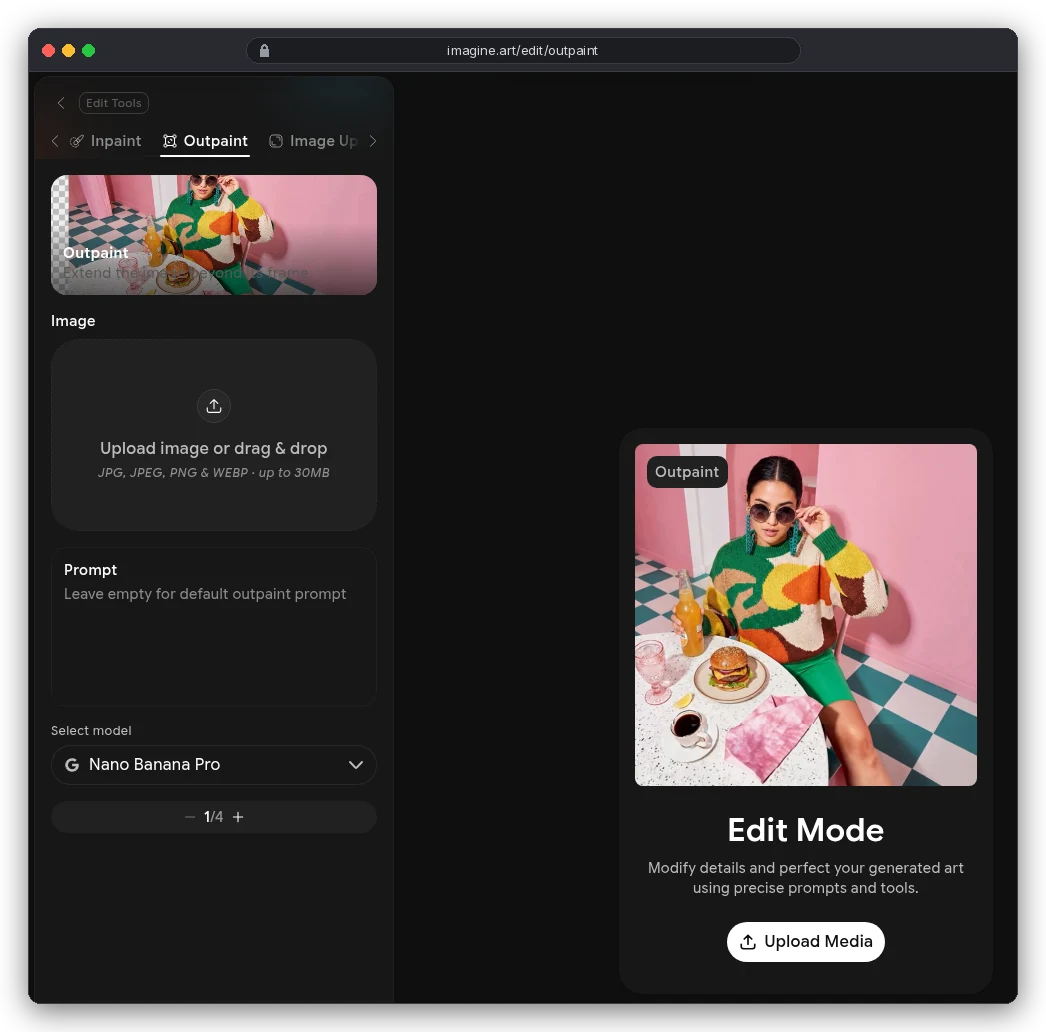
ImagineArt's credit table lists Nano Banana Pro at 80 credits per image at 1K or 2K, and 160 at 4K. Nano Banana 2.1, which handles the same kind of instruction edit, is 27.
Say you fix one image and it takes four tries to get a keeper. That's 108 credits on Nano Banana 2.1, or 320 on the default. On the Basic plan's 3,000 monthly credits, that's roughly 27 fixed images against about 9.
Three times the cost, from a dropdown you didn't touch.
That doesn't mean Pro is never worth it. For text inside the image, or a busy scene with several people, the stronger model can save retries. Retries are where the real cost hides. Start on the cheaper model, and switch up only when it fails twice on the same edit.
Two caveats. ImagineArt says the tooltip on the Create button is "always the source of truth". During its October 2026 promotion, that tooltip shows lower promo prices than the table. And its credits "never roll over", so a cheap month doesn't bank anything.
Adobe works the same way with different numbers:
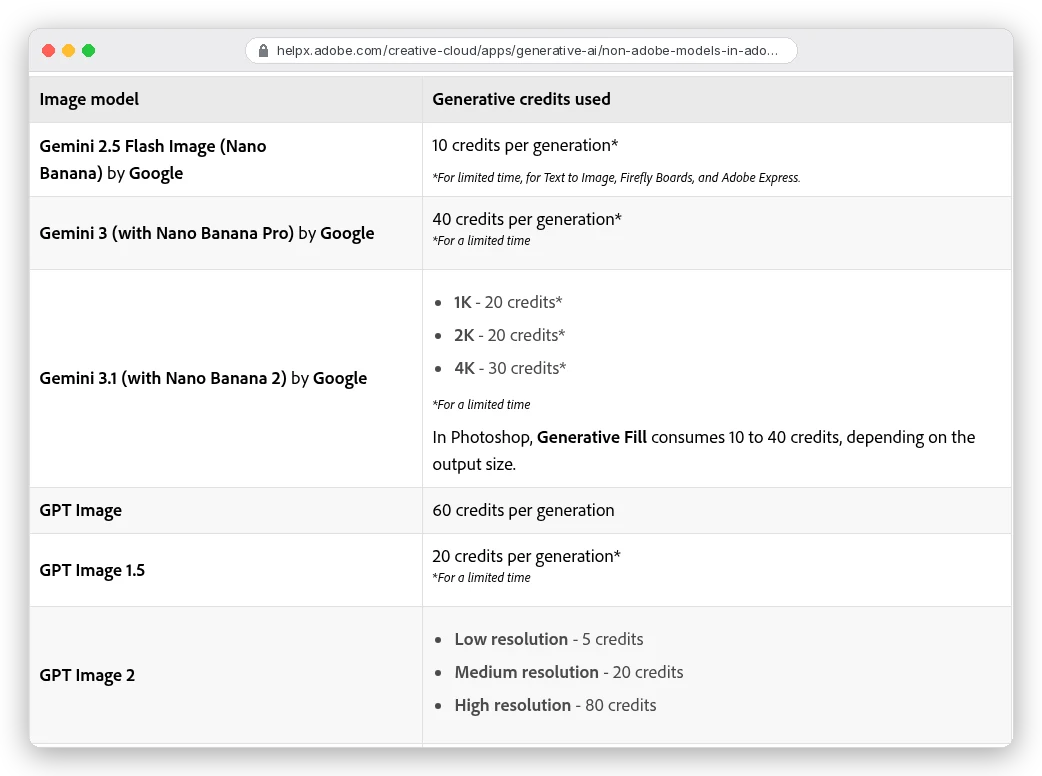
Adobe's own Firefly models are the cheap path there. Its credits FAQ says Generative Fill with Firefly models uses 1 credit per generation. Creative Cloud Pro and Firefly plans get "unlimited access to standard generations". Pick Nano Banana Pro from the same menu and each try costs 40.
OpenAI's API has no credits, just tokens. GPT Image 2.5 output costs $30 per million image tokens, so the bill per image depends on size and quality. Use quality: "low" while you're finding the right prompt, then raise it for the final.
Outpainting: how to change an image's shape without cropping
Outpainting adds canvas around your image and fills it with new scene. It fixes a square image that needs to be a 16:9 thumbnail, or a wide shot that has to become a 9:16 Story.
Each tool handles it a little differently:
- In Photoshop, Generative Expand lives in the Crop tool. Drag the crop handles outward past the image edge, then pick Generative Expand. Adobe says you can leave the prompt blank and let it extend the scene.
- ImagineArt's Outpaint tool also works with an empty prompt; the box reads "Leave empty for default outpaint prompt".
- With Gemini, you set the new
aspect_ratiowhen you send the image. If you don't, the docs say the output matches your input's size.
A blank prompt is fine for sky, walls, sand and other plain backgrounds. It goes wrong when the new area should contain something specific, like the other half of a table or the rest of a person's arm. Then describe it: "extend the marble counter to the left, with the same window light".
Big jumps are where outpainting falls apart. Turning a 1:1 into a 9:16 asks the model to invent much of the final frame. The far edges tend to go repetitive or blurry. Extend in two smaller passes instead, checking each before the next.
And outpaint before you upscale, never after. You want the new canvas generated at the same resolution as the original, then the whole thing enlarged together.
Upscaling: subtle versus creative
Upscaling sounds like the safest edit. It isn't always, because there are two kinds and they behave very differently.
ImagineArt's Upscale docs spell it out.
"Subtle" increases resolution while "retaining the original details". "Creative" upscales and "adds creative details", including "new elements". Adobe draws the same line between Topaz Gigapixel ("high-resolution image upscaling") and Topaz Bloom ("creative, AI-based image upscaling").
Creative mode is lovely on a fantasy painting. On a product label it can rewrite the small print. On a face it can change the person. Use subtle for anything that has to stay true; use creative where nobody can check what the original detail was.
Prices vary more than you'd guess for the same 2× job. From ImagineArt's credit table:
| Upscaler (on ImagineArt) | Scales | Credits |
|---|---|---|
| Imagine Upscalar | 2×, 4×, 8×, 16× | 8 base |
| Topaz | 2×, 4× | 20 × megapixels at 2×, three times that at 4× |
| Magnific Precision v2 | 2× to 16× | 65 at 2×, 260 at 4× |
So a 1920×1080 frame (about 2 megapixels) costs roughly 41 credits at 2× on Topaz, which matches ImagineArt's own example, and about 124 at 4×. The same 4× on Magnific is 260. On the base upscaler, it starts at 8.
There's also a free route.
Real-ESRGAN is an open-source upscaler under the BSD-3-Clause licence that you can run on your own computer.
Know one detail from its README before you trust any "8×" button. Its --outscale option "further resizes outputs with LANCZOS4", a plain resize after the model's own 4× pass. Large scale numbers are often a model step plus ordinary resizing.
Which leads to the honest test for any upscaler: does the destination need the pixels? A web image shown 1,200 pixels wide gains nothing from 8,000. Print and large displays do.
The order that saves you redoing work
Every edit regenerates something, so the order matters. Doing them out of sequence means repeating the expensive ones.
- Decide whether to edit at all, using the one-third rule above.
- Inpaint the local fixes at the original size.
- Outpaint to the shape you need.
- Check the faces, hands, text and edges at 100%.
- Upscale last, once, to the size the destination actually uses.
If you're making a series, lock the character or product first. Editing one image at a time won't keep a mascot consistent across ten; our guide to consistent AI characters covers the reference-image route for that. And for listing photos, the marketplace rules in AI product photos for e-commerce apply to edited images too.
Which tool should you edit in?
Match the tool to the edit, not to the brand you already pay for:
- If you need pixel-exact preservation, like a client's product or a real person's face, use a selection-based tool such as Photoshop's Generative Fill, and paste originals back where needed.
- If the edit is a change of meaning ("make it night", "swap the jacket for denim"), use an instruction model like Nano Banana 2.1 or GPT Image, and spell out what must stay.
- If you make lots of images and want edit, outpaint and upscale in one place, ImagineArt has all three on one credit balance. Our ImagineArt review covers the rest of the platform, and the best AI image generators roundup compares the alternatives.
- If you only need bigger files, start with a free local upscaler and pay for a creative one only when the subtle result looks soft.
Whichever you choose, check the model picker before your first try. That dropdown is where the money goes.